Duplicate content is one of the most common — and most misunderstood — technical SEO problems. If Google finds the same content at multiple URLs on your site, it doesn't know which version to index. The result? Diluted rankings, wasted crawl budget, and lower AdSense revenue. Canonical tags are the primary tool to fix this, and this guide shows you exactly how to use them.
Whether you're running a WordPress blog, a Next.js site, or a custom CMS, duplicate content is almost certainly affecting you right now. URL parameters, www vs non-www variations, pagination, and HTTP vs HTTPS differences all create duplicate pages that confuse search engines. The good news is that the fix is straightforward once you understand how canonical tags work.
What You'll Learn:
- What canonical tags are and how they work
- Common causes of duplicate content (and how to identify them)
- Step-by-step implementation of rel="canonical"
- When to use canonicals vs 301 redirects vs noindex
- How to audit your site for duplicate content
- CMS-specific implementation guides
What Are Canonical Tags?
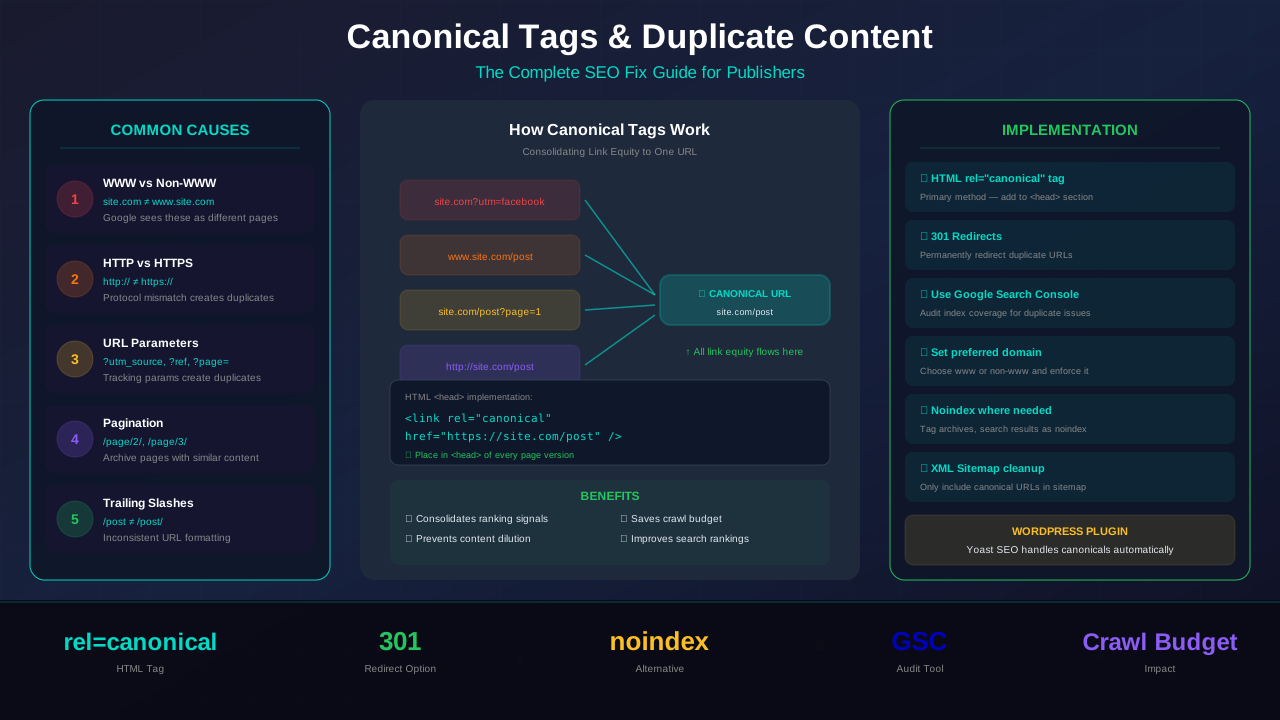
A canonical tag (also called rel="canonical") is an HTML element placed in the <head> section of a page. It tells search engines which version of a URL is the "master" copy — the one that should appear in search results.
Here's what a canonical tag looks like:
<link rel="canonical" href="https://example.com/blog/my-article" />When Google encounters this tag, it treats the specified URL as the authoritative version of the page. Any other URLs with the same content are treated as duplicates, and their ranking signals (backlinks, engagement metrics) are consolidated to the canonical URL.
"If you don't tell Google which URL is canonical, Google will make that choice for you — and it might not pick the one you want."
— Google Search Central Documentation
This is critical for blogs and content sites. If you have 50 articles and each one has 3-4 duplicate versions (HTTP, HTTPS, www, non-www, with tracking parameters), Google sees 150-200 pages instead of 50. That's a mess for your indexing and your rankings.
How Duplicate Content Hurts SEO and AdSense
Duplicate content doesn't trigger a "penalty" in the traditional sense — Google won't manually penalize your site. But the practical effects are just as damaging:
Diluted Link Equity
When backlinks point to different versions of the same page, the ranking power is split between them. Instead of one page with 20 backlinks, you might have four pages with 5 backlinks each. None of them rank as well as a single consolidated page would.
Wasted Crawl Budget
Google allocates a limited crawl budget to your site. Every time Googlebot crawls a duplicate page, it's spending budget that could go toward discovering your new content. For blogs publishing frequently, this directly affects how quickly new articles get indexed.
Wrong Page Ranking
Without canonical tags, Google picks which version to index. It might choose the HTTP version instead of HTTPS, or the version with URL parameters. This means your carefully optimized page isn't the one showing up in search results.
Lower AdSense Revenue
Duplicate content issues reduce your overall organic traffic by fragmenting your rankings. Less traffic means fewer ad impressions and lower AdSense earnings. Sites that fix duplicate content issues typically see a 10-30% increase in organic traffic within 2-3 months.
Common Causes of Duplicate Content
Before you can fix duplicate content, you need to understand where it comes from. Here are the most common causes for blogs and content sites:
See also: How to Fix Mixed Content Errors: Complete Guide for Blog Owners →
1. WWW vs Non-WWW
If both https://example.com/article and https://www.example.com/article resolve and serve the same content, Google sees two separate pages. This is one of the most basic and common duplication issues.
2. HTTP vs HTTPS
After migrating to HTTPS, if your HTTP versions still load (even without redirects), you have duplicate content. Ensure your technical SEO setup includes proper redirects from HTTP to HTTPS.
3. URL Parameters
Tracking parameters (?utm_source=twitter), session IDs (?sid=abc123), sort parameters (?sort=date), and filter parameters all create unique URLs that serve identical content. This is especially common on e-commerce sites, but blog pagination and tracking links also cause it.
4. Trailing Slashes
These are technically different URLs to search engines:
https://example.com/blog/my-article
https://example.com/blog/my-article/
If both versions are accessible and serve the same content, you have a duplicate content issue.
5. Pagination
For paginated content (e.g., /blog/page/2), the category or archive page often has overlapping content with page 1. While not exact duplicates, they can cause indexing confusion.
6. Print and Mobile Versions
Some sites serve separate URLs for print-friendly or mobile versions of pages. If the content is the same, these need canonical tags pointing to the primary version.
7. Syndicated and Scraped Content
If your content appears on other domains (either through authorized syndication or scraping), cross-domain canonical tags help Google know your site is the original source.
How to Implement rel="canonical" Correctly
Implementing canonical tags is straightforward, but there are specific rules to follow to ensure Google respects them.
Basic Implementation
Add the canonical tag inside the <head> section of every page:
You might also find helpful: URL Structure Best Practices: Clean URLs That Boost SEO & AdSense Revenue →
<head>
  <link rel="canonical" href="https://example.com/blog/my-article" />
</head>
Rules for Correct Implementation
- Use absolute URLs: Always use the full URL including the protocol. Use
https://example.com/page, not/page. - Use lowercase URLs: Be consistent with casing.
https://example.com/Blogandhttps://example.com/blogare different URLs. - Use the preferred domain: If you prefer www, use it in all canonical tags. If you prefer non-www, use that consistently.
- Include the protocol: Always specify
https://(orhttp://if you haven't migrated yet). - One canonical per page: Never include more than one canonical tag. If there are multiple, Google may ignore all of them.
Self-Referencing Canonical Tags
Every page should have a canonical tag pointing to itself. This is called a self-referencing canonical. Even if a page has no duplicates, a self-referencing canonical protects against future duplication issues (like someone linking to your page with added parameters).
<!-- On the page https://example.com/blog/my-article -->
<link rel="canonical" href="https://example.com/blog/my-article" />
This is a best practice recommended by Google and should be implemented site-wide.
"We recommend that you specify a canonical page for every page on your site, even if there's no duplicate. This protects your preferred URL if unexpected duplicates appear in the future."
— John Mueller, Google Search Advocate
Cross-Domain Canonical Tags
If your content is syndicated on another website, that site should include a canonical tag pointing back to your original article:
<!-- On syndication-partner.com -->
<link rel="canonical" href="https://your-site.com/blog/original-article" />
This tells Google that your site is the original publisher. Without this, the syndication partner might outrank you for your own content.
Canonical Tags vs 301 Redirects vs Noindex
Canonical tags aren't the only tool for handling duplicate content. Here's when to use each approach:
Key Differences
- Canonical tag: A hint to Google. Both URLs remain accessible. Google usually respects it, but can override. Best for URL parameters, syndicated content, and when users need access to both versions.
- 301 redirect: A hard redirect. Users and bots are automatically sent to the new URL. Best for permanent URL changes, domain migrations, and HTTP→HTTPS.
- Noindex: Tells Google to remove the page from its index entirely. The page remains accessible to users. Best for internal search results, filtered views, and admin pages.
A common question: can you use both a canonical tag and a 301 redirect? Technically yes, but it's redundant. If you're redirecting, the canonical tag on the destination page handles the rest. Focus on using the right tool for each situation.
Common Canonical Tag Mistakes
Even experienced developers make these canonical tag errors. Each one can undermine your SEO efforts:
1. Canonical Tag in the Body
The canonical tag must be in the <head> section. If it appears in the <body>, Google ignores it completely. This often happens when JavaScript injects the tag in the wrong location, or when a CMS template places it incorrectly.
2. Multiple Canonical Tags
If a page has more than one canonical tag (common when plugins or themes conflict), Google may ignore all of them. Check your rendered HTML source — not just your template — to make sure only one exists.
You might also find helpful: Structured Data Testing Guide: Validate Schema Markup Like a Pro →
3. Canonicalizing to a 404 or Redirected Page
If the canonical URL returns a 404 error or redirects to another page, Google becomes confused. The canonical target must be a live, accessible, 200 status page.
4. Using Relative URLs
While browsers can resolve relative URLs, it creates ambiguity for search engines. Always use absolute URLs in canonical tags:
<!-- Bad -->
<link rel="canonical" href="/blog/my-article" />

<!-- Good -->
<link rel="canonical" href="https://example.com/blog/my-article" />
5. Canonicalizing Dissimilar Content
Canonical tags should point to pages with the same (or very similar) content. If you canonicalize Page A to Page B but they have completely different content, Google will likely ignore the canonical and may even distrust future canonical signals from your site.
6. Noindex + Canonical Conflict
If a page has both a noindex meta tag and a canonical tag pointing to a different URL, these send conflicting signals. Google has said it will generally follow the canonical, but it's best to avoid the conflict entirely. Pick one approach.
7. Canonical Chains
Page A canonicalizes to Page B, which canonicalizes to Page C. This creates a chain that Google may not fully follow. Always point canonical tags directly to the final, preferred URL.
How to Audit Your Site for Duplicate Content
Before implementing fixes, you need to find your duplicate content issues. Here's a systematic approach:
Step 1: Check Google Search Console
Navigate to Indexing → Pages in Google Search Console. Look for these status categories:
- "Duplicate without user-selected canonical" — Google found duplicates and chose its own canonical.
- "Duplicate, Google chose different canonical than user" — You set a canonical, but Google disagreed.
- "Alternate page with proper canonical tag" — Your canonical tags are working correctly.
These reports tell you exactly where Google is finding duplicate content issues. For more on using Search Console, see our guide on fixing indexing issues in Google.
Step 2: Use the site: Search Operator
Search site:yourdomain.com "exact title of your article" in Google. If multiple URLs appear for the same content, you have a duplication problem.
Step 3: Crawl Your Site
Use a crawling tool like Screaming Frog, Sitebulb, or Ahrefs Site Audit to crawl your entire site. These tools identify:
Learn more in HTTPS & SSL Security: Essential Guide for AdSense Sites →
- Pages with missing canonical tags
- Pages with multiple canonical tags
- Canonical tags pointing to non-existent URLs
- Canonical chains and loops
- Pages with the same content but different URLs
Step 4: Check Your XML Sitemap
Your XML sitemap should only contain canonical URLs. If your sitemap includes non-canonical URLs, you're sending conflicting signals to Google. Cross-reference your sitemap URLs with your canonical tags to ensure they match.
Step 5: Verify robots.txt Configuration
Make sure your robots.txt file isn't blocking Google from accessing your canonical URLs. If Googlebot can't reach the canonical page, it can't process the canonical signal from duplicate pages.
Tools for Finding Duplicate Content Issues
Here are the best tools for identifying and monitoring duplicate content:
Free Tools
- Google Search Console: The most authoritative source. Shows exactly what Google sees, including canonical status for each indexed URL.
- Siteliner: Scans your site for internal duplicate content and shows the percentage of duplicate pages.
- Google "site:" operator: Quick manual check for specific pages.
- View Source / DevTools: Right-click → View Source on any page to check if the canonical tag is present and correct.
Paid Tools
- Screaming Frog SEO Spider: Crawls your entire site and reports all canonical tag issues in one dashboard. Free for up to 500 URLs.
- Ahrefs Site Audit: Comprehensive duplicate content detection with prioritized recommendations.
- SEMrush Site Audit: Identifies duplicate content, missing canonicals, and conflicting signals.
- Sitebulb: Visual crawl analysis that makes it easy to spot canonical chains and issues.
WordPress and CMS-Specific Implementation
WordPress
WordPress handles some canonical tag issues out of the box (since version 2.9), but it's not comprehensive. Here's how to get full coverage:
Using Yoast SEO (Recommended)
Yoast automatically adds self-referencing canonical tags to every page. To set a custom canonical URL:
- Edit the post or page in WordPress
- Scroll to the Yoast SEO meta box
- Click "Advanced"
- Enter the canonical URL in the "Canonical URL" field
Using Rank Math
Rank Math also adds automatic canonicals. To customize:
- Edit the post
- Open the Rank Math meta box
- Go to the "Advanced" tab
- Set the canonical URL
Manual Implementation (Without Plugins)
Add this to your theme's header.php or use the wp_head hook:
<?php
// Add to functions.php
function add_canonical_tag() {
    if (is_singular()) {
        echo '<link rel="canonical" href="' . esc_url(get_permalink()) . '" />';
    }
}
add_action('wp_head', 'add_canonical_tag');
?>
Next.js
In Next.js, add the canonical tag in your page component's <Head>:
import Head from 'next/head';

export default function ArticlePage({ article }) {
  const canonicalUrl = `https://example.com/blog/${article.slug}`;

  return (
    <>
      <Head>
        <link rel="canonical" href={canonicalUrl} />
      </Head>
      {/* Page content */}
    </>
  );
}
For the App Router (Next.js 13+), use the metadata API:
export async function generateMetadata({ params }) {
  return {
    alternates: {
      canonical: `https://example.com/blog/${params.slug}`,
    },
  };
}
Static Sites (HTML)
For static sites, manually add the canonical tag to each page's <head> section. If you use a static site generator like Hugo or Jekyll, add it to your base template:
You might also find helpful: Crawl Budget Optimization: Get Google to Index Your Blog Faster →
<!-- Hugo -->
<link rel="canonical" href="{{ .Permalink }}" />

<!-- Jekyll -->
<link rel="canonical" href="{{ page.url | absolute_url }}" />
Advanced Canonical Tag Strategies
Handling Pagination
For paginated content (like blog archive pages), each paginated page should have a self-referencing canonical. Don't point page 2, 3, etc. back to page 1 — each page has unique content (different posts). Google previously supported rel="prev" and rel="next" for pagination, but no longer uses them as indexing signals.
Handling Multilingual and Multi-Region Sites
If you have the same content in the same language on different country domains, use canonical tags alongside hreflang tags. The canonical should point to itself on each regional version, and hreflang handles the language/region relationships.
<!-- On example.co.uk -->
<link rel="canonical" href="https://example.co.uk/blog/article" />
<link rel="alternate" hreflang="en-us" href="https://example.com/blog/article" />
<link rel="alternate" hreflang="en-gb" href="https://example.co.uk/blog/article" />
Canonical Tags in HTTP Headers
For non-HTML files (PDFs, images), you can set the canonical URL using an HTTP header:
Link: <https://example.com/document.pdf>; rel="canonical"This is useful when you can't modify the HTML of a file but can control server headers.
Monitoring Canonical Tag Health
Set up a monthly audit cadence. Check Google Search Console for new "Duplicate" issues, run a crawl with Screaming Frog, and verify that new content has correct self-referencing canonicals. Building a strong internal linking strategy also helps Google discover and respect your canonical URLs faster.
Frequently Asked Questions
Do canonical tags pass link equity like 301 redirects?
Yes. Google has confirmed that canonical tags consolidate link equity in a similar way to 301 redirects. The canonical URL receives the combined ranking signals from all duplicate versions. However, a 301 redirect is stronger because it's a server-level directive, while a canonical tag is a hint that Google can choose to ignore.
Can Google ignore my canonical tag?
Yes. The canonical tag is a hint, not a directive. Google may override your canonical if it believes a different URL is a better canonical. Common reasons include: the canonical URL returns an error, the content is significantly different between URLs, or internal links and sitemaps point to a different URL than the canonical specifies.
Should every page have a canonical tag?
Yes — every indexable page should have a self-referencing canonical tag. This is a preventive measure that protects against accidental duplication from URL parameters, session IDs, or other sources you might not anticipate. It takes minimal effort and provides significant protection.
How long does it take for canonical tags to take effect?
It depends on how frequently Google crawls your site. For most blogs, you'll see changes reflected in Google Search Console within 1-4 weeks. Larger sites with more frequent crawling may see results faster. You can speed up the process by requesting re-indexing in Search Console for specific URLs.
Do canonical tags affect AdSense approval?
Not directly. Google's AdSense review team looks at content quality, policy compliance, and site structure. However, duplicate content issues can make your site appear to have thin or low-quality content, which can lead to rejection. Fixing canonical tag issues ensures Google sees your site's full, unique content library rather than a cluttered set of duplicate pages.
What's the difference between canonical tags and the URL Inspection tool?
The URL Inspection tool in Google Search Console shows you what Google sees for a specific URL, including which canonical Google has selected. It's a diagnostic tool — it doesn't change anything. Canonical tags are the implementation that tells Google your preference. Use the URL Inspection tool to verify your canonical tags are working.
Can I use canonical tags to consolidate thin content pages?
Only if the pages have substantially similar content. If you have several thin pages with related but different content, it's better to consolidate them into one comprehensive page and use 301 redirects from the old URLs. Canonical tags should only be used when the content is the same or nearly the same across the URLs.