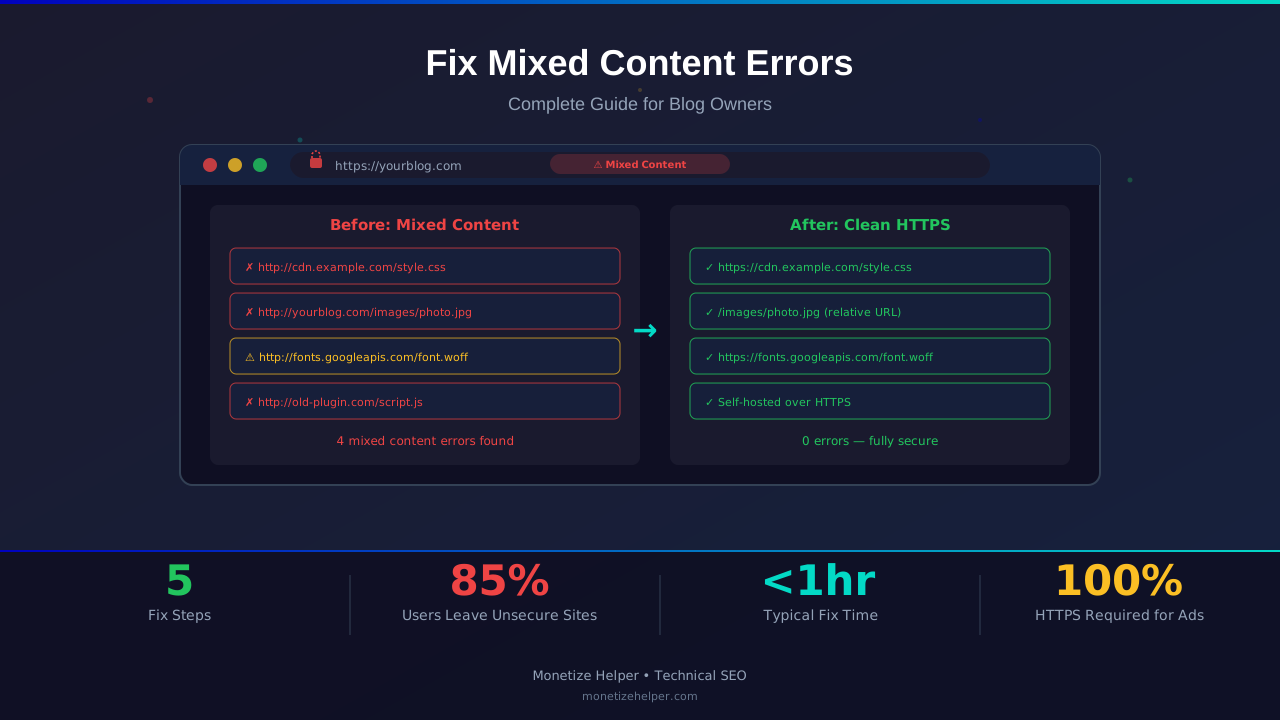
That "Not Secure" warning in your browser bar is costing you traffic, trust, and ad revenue. Mixed content errors happen when your HTTPS site loads some resources over insecure HTTP. They're common and fixable.
This guide walks you through finding every mixed content issue on your site and fixing them permanently. No coding degree required.
What You'll Learn:
- What mixed content errors are and why they matter
- How to find every mixed content issue on your site
- Step-by-step fixes for each type of mixed content
- How to prevent mixed content from coming back
What Are Mixed Content Errors?
When your site runs on HTTPS (secure), every resource it loads should also use HTTPS. Mixed content happens when some resources — images, scripts, stylesheets, or iframes — load over plain HTTP instead.
Browsers flag this as a security risk because those insecure resources can be intercepted or modified by attackers.
Two Types of Mixed Content
Passive mixed content includes images, videos, and audio files loaded over HTTP. Browsers usually still load these but show a warning. They can't modify your page, but they can be swapped out by an attacker.
Active mixed content includes scripts, stylesheets, iframes, and fetch requests over HTTP. These are far more dangerous because they can modify your entire page. Modern browsers block these completely.
Why Mixed Content Hurts Your Blog
SEO Impact
Google uses HTTPS as a ranking signal. Mixed content undermines that signal. If Googlebot encounters blocked resources, your pages may not render correctly in their index.
You might also find helpful: URL Structure Best Practices: Clean URLs That Boost SEO & AdSense Revenue →
User Trust
That "Not Secure" warning scares visitors away. Studies show 85% of users abandon a site when they see a security warning. That's direct traffic loss.
Ad Revenue
AdSense and other ad networks require HTTPS. Mixed content can prevent ads from loading correctly, costing you impressions and revenue. Some ad networks will even reject sites with persistent mixed content issues.
How to Find Mixed Content Errors
Method 1: Browser Developer Tools
The fastest way to check any page:
- Open your site in Chrome or Firefox
- Press F12 to open Developer Tools
- Click the Console tab
- Look for yellow or red warnings mentioning "mixed content"
The console tells you exactly which resource is causing the problem and which file is loading it.
You might also find helpful: Structured Data Testing Guide: Validate Schema Markup Like a Pro →
Method 2: Online Scanners
For a site-wide scan, use these free tools:
- Why No Padlock: Scans any URL for mixed content
- JitBit SSL Check: Crawls up to 400 pages
- SSL Labs: Comprehensive SSL configuration check
Method 3: Google Search Console
Search Console flags mixed content issues under Security & Manual Actions > Security Issues. Check this monthly. Also review our URL structure guide for related HTTPS migration tips.
Step-by-Step Fixes
Fix 1: Update Hard-Coded URLs
The most common cause is old HTTP URLs in your content. Search your database and theme files for http:// and replace with https://.
For WordPress sites, use the Better Search Replace plugin:
For more on this topic, see our guide on Canonical Tags & Duplicate Content: The Complete SEO Fix Guide →
- Install and activate Better Search Replace
- Search for:
http://yourdomain.com - Replace with:
https://yourdomain.com - Run on all tables
- Do a dry run first to preview changes
Fix 2: Update Theme and Plugin Files
Check your theme's header.php, footer.php, and functions.php for hard-coded HTTP URLs. Also check any custom CSS files. Replace all http:// references with https:// or use protocol-relative URLs (//).
Fix 3: Fix External Resources
If you embed images, fonts, or scripts from external sites, make sure those URLs use HTTPS too. Most CDNs support HTTPS now. If an external resource doesn't support HTTPS, you have two options:
- Host the resource on your own server over HTTPS
- Find an alternative that supports HTTPS
Fix 4: Add Content Security Policy Headers
Add this header to automatically upgrade HTTP requests to HTTPS:
Content-Security-Policy: upgrade-insecure-requests
Learn more in HTTPS & SSL Security: Essential Guide for AdSense Sites →
This tells browsers to automatically try HTTPS for every HTTP resource. It's a great safety net after you've fixed the main issues.
Fix 5: Force HTTPS Redirects
Make sure your server redirects all HTTP traffic to HTTPS. Add this to your .htaccess file (Apache) or configure it in your hosting panel. Most hosts have a one-click HTTPS redirect option now.
Preventing Future Mixed Content
Fixing existing issues is only half the battle. Prevent new ones with these habits:
- Always use HTTPS URLs when embedding images, links, or resources
- Use relative URLs for internal resources (e.g.,
/images/photo.jpginstead ofhttp://yourdomain.com/images/photo.jpg) - Keep the CSP header active as a safety net
- Audit monthly using browser DevTools or an online scanner
- Check new plugins before installing — some inject HTTP resources
Frequently Asked Questions
Will fixing mixed content improve my Google rankings?
Directly, the impact is small. But it prevents ranking penalties, improves crawlability, and ensures your pages render correctly in Google's index. Combined with user trust improvements, it often leads to better metrics overall.
You might also find helpful: Crawl Budget Optimization: Get Google to Index Your Blog Faster →
Can mixed content block AdSense ads?
Yes. AdSense serves ads over HTTPS. If your page has active mixed content that blocks scripts, AdSense ads may fail to load. This means lost impressions and revenue.
What if an external resource doesn't support HTTPS?
Host it yourself over HTTPS, or find an alternative. Don't keep loading insecure resources — the security risk and SEO impact aren't worth it.
Do I need an SSL certificate for all subdomains?
Yes, if you load resources from subdomains. A wildcard SSL certificate covers all subdomains. Most hosts include free wildcard SSL through Let's Encrypt.
How do I check if my fixes worked?
Open your site in Chrome, press F12, check the Console tab. If there are no mixed content warnings, you're clean. Also check that the padlock icon shows in the address bar without warnings.
Conclusion
Mixed content errors are one of the easiest technical SEO issues to fix. Scan your site today, update those HTTP URLs, add the CSP header as a safety net, and set up monthly checks to stay clean.
Your visitors see a secure padlock. Google sees a properly configured site. Your ads load correctly. Everyone wins.
Next steps: Run your site through our Website Analyzer for a full technical audit, then check your URL structure to make sure everything is optimized for HTTPS.