HTTPS isn't optional anymore. Google requires it. AdSense expects it. Your visitors trust it. If your blog still runs on plain HTTP, you're losing rankings, ad revenue, and reader confidence every single day.
The good news? Setting up HTTPS is easier and cheaper than ever. Most hosting providers offer free SSL certificates. You can switch your entire site in under an hour.
What You Will Learn:
- What HTTPS and SSL actually mean in plain English
- Why Google and AdSense require secure connections
- How to get and install a free SSL certificate
- How to fix mixed content errors after switching
- The direct impact of HTTPS on your ad revenue and SEO
- Common SSL mistakes and how to avoid them
What Is HTTPS and SSL?
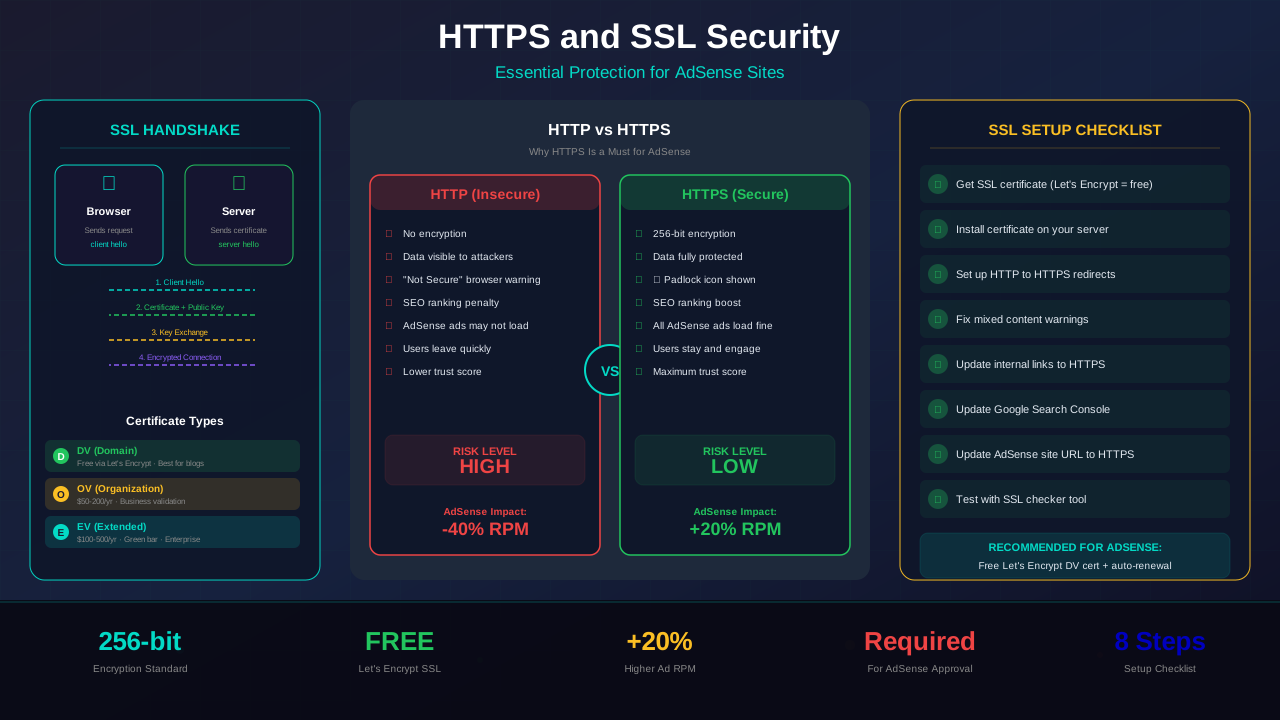
HTTPS stands for HyperText Transfer Protocol Secure. It's the secure version of HTTP, the protocol your browser uses to load websites. When a site uses HTTPS, all data between the visitor and the server is encrypted.
SSL stands for Secure Sockets Layer. It's the technology that creates that encrypted connection. Technically, most sites now use TLS (Transport Layer Security), which is the newer version. But everyone still calls it SSL.
How Encryption Works in Simple Terms
Think of it like sending a letter in a locked box. Only you and the receiver have the key. Even if someone intercepts the box, they can't read what's inside. That's what SSL does for your website data.
When you see a padlock icon in your browser's address bar, that means the site uses HTTPS. Without it, browsers show a "Not Secure" warning. That scares visitors away fast.
"HTTPS is a lightweight ranking signal. Moving to HTTPS can give your pages a small boost in Google search results."
— Google Search Central, HTTPS as a Ranking Signal
Why Google Requires HTTPS
Google has pushed HTTPS hard since 2014. That year, they announced HTTPS as a ranking signal. Since then, the push has only gotten stronger.
In Chrome, any site without HTTPS shows a "Not Secure" warning in the address bar. This warning alone can increase your bounce rate by 20% or more. Visitors see it and leave before your page even loads.
HTTPS and Search Rankings
HTTPS is a confirmed ranking factor. It's not going to shoot you to page one by itself. But between two similar pages, Google will favor the HTTPS version. Every small advantage counts when you're competing for ad clicks.
Google also indexes HTTPS pages by default. If your site is available on both HTTP and HTTPS, Google prefers the secure version. This makes proper sitemap configuration even more important.
See also: How to Fix Mixed Content Errors: Complete Guide for Blog Owners →
HTTPS and AdSense Approval
Google AdSense doesn't technically require HTTPS for approval. But in practice, sites without it face more scrutiny. Reviewers look at your site's overall quality, and a "Not Secure" warning hurts that impression.
More importantly, AdSense ads load over HTTPS. If your site uses HTTP, you can run into mixed content issues. Some ads may not display correctly. That means lost impressions and lost revenue.
Impact on Ad Revenue
Sites that switch to HTTPS often see a small bump in ad performance. This happens for two reasons. First, visitors trust secure sites more, so they stay longer. Second, all ad networks serve ads over HTTPS, so there are no loading conflicts.
"We recommend that all websites use HTTPS. It protects the integrity and confidentiality of data between the user's computer and the site."
— Google AdSense Help Documentation
SSL Certificate Types Explained
Not all SSL certificates are the same. There are three main types. For most bloggers and AdSense publishers, only one matters.
Domain Validation (DV) Certificates
DV certificates are the simplest and cheapest. They verify that you own the domain. That's it. Let's Encrypt gives these out for free. For a blog or content site, this is all you need.
Organization Validation (OV) Certificates
OV certificates verify your organization's identity. They cost $50 to $200 per year. E-commerce sites sometimes use these for extra trust. Blogs don't need them.
Extended Validation (EV) Certificates
EV certificates are the most thorough. They require detailed verification of your business. They cost $100 to $500 per year. Banks and financial sites use them. You definitely don't need one for a blog.
You might also find helpful: URL Structure Best Practices: Clean URLs That Boost SEO & AdSense Revenue →
| Certificate Type | Cost | Verification Level | Best For | Setup Time |
|---|---|---|---|---|
| Domain Validation (DV) | Free – $10/yr | Domain ownership only | Blogs, content sites | Minutes |
| Organization Validation (OV) | $50 – $200/yr | Organization identity | Business websites | 1-3 days |
| Extended Validation (EV) | $100 – $500/yr | Full business verification | Banks, e-commerce | 1-2 weeks |
How to Set Up SSL on Your Site
The setup process depends on your hosting provider. But the general steps are the same. Here's how to do it on the most popular platforms.
Using Let's Encrypt (Free)
Let's Encrypt is a free certificate authority. Most hosting providers integrate it with one click. On cPanel hosting, go to the SSL/TLS section and click "Install Let's Encrypt." It takes about two minutes.
The certificate renews automatically every 90 days. You don't have to do anything after the initial setup. If you use WordPress, your host likely supports it already.
Cloudflare Free SSL
Cloudflare offers a free SSL option even on their free plan. Point your domain's nameservers to Cloudflare. Then enable "Full (Strict)" SSL mode. This encrypts traffic between visitors and Cloudflare, and between Cloudflare and your server.
WordPress-Specific Steps
After installing your SSL certificate, update your WordPress site. Go to Settings → General. Change both the WordPress Address and Site Address from HTTP to HTTPS. Then install a plugin like "Really Simple SSL" to handle redirects and fix internal links.
You should also update your Core Web Vitals configuration after the switch. HTTPS adds a tiny bit of latency, but modern TLS is so fast it's barely noticeable.
Fixing Mixed Content Errors
Mixed content is the most common problem after switching to HTTPS. It happens when your secure page loads some resources (images, scripts, stylesheets) over plain HTTP. Browsers block or warn about these insecure requests.
How to Find Mixed Content
Open your site in Chrome. Press F12 to open Developer Tools. Click the Console tab. Mixed content warnings appear in yellow or red. They tell you exactly which resources are loading over HTTP.
You might also find helpful: Structured Data Testing Guide: Validate Schema Markup Like a Pro →
You can also use free tools like Why No Padlock to scan your pages. They'll list every insecure resource on any page you check.
How to Fix It
Most mixed content comes from hardcoded HTTP URLs in your content. Images you inserted years ago might still point to http://yourdomain.com/image.jpg. Update these to use HTTPS or protocol-relative URLs.
In WordPress, use the "Better Search Replace" plugin. Search for http://yourdomain.com and replace it with https://yourdomain.com. Run it across all database tables. This fixes most issues in one step.
Mixed content can also break your site speed optimizations. Browsers that block mixed content may prevent images and scripts from loading. This hurts both performance scores and user experience.
Common SSL Errors and Fixes
SSL errors can block visitors from reaching your site entirely. Here are the most common ones and how to fix them.
ERR_CERT_DATE_INVALID
This means your certificate has expired. Free Let's Encrypt certificates expire every 90 days. If auto-renewal fails, you'll see this error. Log into your hosting panel and manually renew, or check that the cron job for auto-renewal is running.
ERR_CERT_COMMON_NAME_INVALID
This happens when the certificate doesn't match your domain. If your cert is for www.example.com but someone visits example.com (without www), they'll get this error. Make sure your certificate covers both versions of your domain.
ERR_SSL_PROTOCOL_ERROR
This usually means your server's SSL configuration is broken. Check that your hosting provider hasn't disabled TLS. Also make sure you're not using outdated TLS versions (TLS 1.0 or 1.1 are deprecated).
For more on this topic, see our guide on Canonical Tags & Duplicate Content: The Complete SEO Fix Guide →
"An expired SSL certificate is worse than no certificate at all. Visitors see a full-page security warning that most people will never click through."
— Qualys SSL Labs Best Practices Guide
HTTPS Impact on SEO Rankings
HTTPS directly affects your search rankings. Google confirmed it's a ranking factor in 2014. Since then, the weight has only increased.
Studies show that over 95% of page-one Google results use HTTPS. That doesn't mean HTTPS alone got them there. But not having it is a clear disadvantage.
Beyond the Ranking Signal
HTTPS helps SEO in indirect ways too. Referral data is preserved when traffic passes between HTTPS sites. Without HTTPS, referral data gets stripped. This means your Google Analytics shows more "direct" traffic than you actually have, which makes it harder to understand where your visitors come from.
Your mobile-first indexing setup also benefits from HTTPS. Google's mobile crawler specifically looks for secure connections when evaluating sites.
Setting Up Proper HTTPS Redirects
After installing SSL, you need to redirect all HTTP traffic to HTTPS. Without redirects, your site is accessible on both versions. This creates duplicate content issues and splits your link equity.
301 Redirects in .htaccess
For Apache servers (most shared hosting), add this to your .htaccess file:
RewriteEngine On
RewriteCond %{HTTPS} off
RewriteRule ^(.*)$ https://%{HTTP_HOST}%{REQUEST_URI} [L,R=301]
This tells the server to permanently redirect all HTTP requests to HTTPS. The 301 status code passes almost all SEO value to the new URL.
You might also find helpful: Crawl Budget Optimization: Get Google to Index Your Blog Faster →
Nginx Redirects
If your server runs Nginx, add a server block that redirects port 80 to 443. Most managed WordPress hosts handle this automatically. Just enable the "Force HTTPS" option in your hosting dashboard.
Verify Your Redirects
After setting up redirects, test them. Type your HTTP URL in a browser. It should instantly jump to HTTPS. Also check internal pages, not just the homepage. Use a redirect checker tool to confirm the 301 status code.
Monitoring and Maintaining Your SSL
Setting up SSL isn't a one-time task. Certificates expire. Configurations change. New mixed content can sneak in when you add content or plugins.
Set Up Expiration Alerts
Use a monitoring service to alert you before your certificate expires. Services like UptimeRobot (free) or Pingdom can check your SSL status daily. Getting locked out because of an expired cert means zero ad revenue until you fix it.
Regular Security Scans
Run your site through Qualys SSL Labs (ssllabs.com) every few months. It gives your SSL configuration a grade from A+ to F. Aim for at least an A. This tool also flags outdated ciphers and protocol versions.
Keeping your SSL in good shape ties into your overall technical SEO audit checklist. Make SSL checks part of your regular maintenance routine.
Frequently Asked Questions
Does HTTPS really affect AdSense earnings?
Yes, but indirectly. HTTPS doesn't change how much you earn per click. However, it prevents mixed content issues that can block ads from showing. It also keeps visitors on your site longer because they trust a secure connection. More pageviews with working ads means more revenue.
Is a free SSL certificate as good as a paid one?
For encryption, yes. A free Let's Encrypt certificate provides the same level of encryption as a $200 paid certificate. The difference is in validation level and warranty. For a blog or content site, the free option is perfectly fine. Google treats all valid certificates the same.
Will switching to HTTPS hurt my traffic temporarily?
There can be a brief dip during the transition. Google needs to recrawl and reindex your HTTPS pages. If you set up 301 redirects correctly, this usually takes a few days to a couple of weeks. Most sites recover quickly and see improved rankings within a month.
What happens if my SSL certificate expires?
Visitors see a full-page security warning in their browser. Most people will leave immediately. Your AdSense ads won't load because the browser blocks insecure content. Your search rankings can drop as well. Set up auto-renewal and monitoring to prevent this.
Do I need a separate SSL certificate for each subdomain?
It depends on your certificate type. A standard DV certificate covers one domain (like example.com). A wildcard certificate covers all subdomains (*.example.com). Let's Encrypt issues both types for free. If you only run a blog on your main domain, a standard certificate is enough.