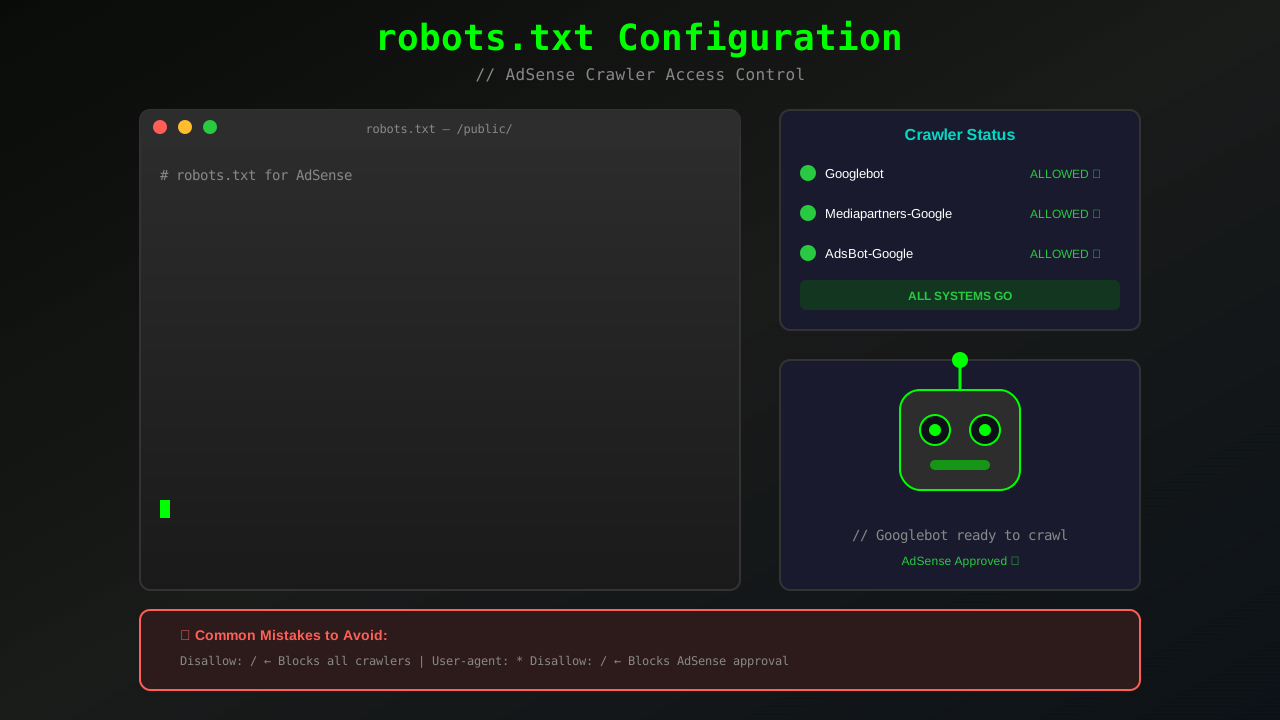
Your robots.txt file controls which pages search engines can access. If configured incorrectly, it can block Google from crawling your site and cause AdSense approval rejection. This guide shows you exactly how to set up robots.txt for successful AdSense approval.
Many publishers unknowingly block Googlebot or AdSense crawlers with restrictive robots.txt settings. Understanding this simple text file can make the difference between approval and rejection.
What You Will Learn:
- What robots.txt does and why it matters
- Correct robots.txt configuration for AdSense
- How to test your robots.txt file
- Common mistakes that block approval
- Platform-specific configurations
What Is robots.txt?
Robots.txt is a text file at your site's root that tells search engine crawlers which pages they can or cannot access. It is one of the first files crawlers check when visiting your site.
How Crawlers Use It
When Googlebot visits your site, it first checks yoursite.com/robots.txt. If rules block certain pages, Googlebot will not crawl them—even if they are important for AdSense evaluation.
Why It Matters for AdSense
Google's AdSense crawler must access your content to evaluate your site. If robots.txt blocks access:
- Google cannot assess your content quality
- Your application may be rejected as "insufficient content"
- Even after approval, ads may not display properly
Correct robots.txt for AdSense
Here is the recommended robots.txt configuration:
Basic Open Configuration
User-agent: *
Allow: /
Sitemap: https://yoursite.com/sitemap.xml
This configuration:
- User-agent: * - Applies to all search engine crawlers
- Allow: / - Permits access to all pages
- Sitemap: - Points crawlers to your XML sitemap (learn how to create one)
Configuration With Protected Areas
If you need to block some areas while keeping content accessible:
See also: How to Fix Mixed Content Errors: Complete Guide for Blog Owners →
User-agent: *
Allow: /
Disallow: /admin/
Disallow: /wp-admin/
Disallow: /private/

User-agent: Mediapartners-Google
Allow: /

Sitemap: https://yoursite.com/sitemap.xml
Explicitly Allow AdSense Crawler
To ensure the AdSense crawler has access:
User-agent: Mediapartners-Google
Allow: /

User-agent: *
Allow: /
Sitemap: https://yoursite.com/sitemap.xml
Mediapartners-Google is the specific user agent for Google's AdSense crawler.
Where to Place robots.txt
The file must be at your domain root:
Correct Location
- https://yoursite.com/robots.txt ✓
- https://www.yoursite.com/robots.txt ✓
Incorrect Locations
- https://yoursite.com/pages/robots.txt ✗
- https://yoursite.com/public/robots.txt ✗
Testing Your robots.txt
Always verify your configuration works correctly:
Google Search Console Test
- Go to Google Search Console
- Navigate to Settings → robots.txt Tester
- Enter important URLs from your site
- Verify they show "Allowed"
Direct Access Test
- Visit yoursite.com/robots.txt in a browser
- Verify the file loads correctly
- Check no unintended blocks exist
Check for AdSense Crawler Access
Use Google's robots.txt tester to specifically check Mediapartners-Google user agent access to your content pages.
You might also find helpful: URL Structure Best Practices: Clean URLs That Boost SEO & AdSense Revenue →
Common robots.txt Mistakes
Avoid these errors that cause AdSense rejection:
Blocking Everything
User-agent: *
Disallow: /
This blocks all crawlers from your entire site. Never use this on a live site.
Blocking Specific Google Bots
User-agent: Googlebot
Disallow: /
This blocks Google's main crawler, preventing indexing and AdSense evaluation.
Accidentally Blocking Content
Disallow: /blog/
Disallow: /articles/
If your main content is in these folders, you are blocking what AdSense needs to evaluate.
Missing File
While not having a robots.txt defaults to open access, some platforms may generate restrictive ones. Always check.
You might also find helpful: Structured Data Testing Guide: Validate Schema Markup Like a Pro →
Incorrect Syntax
user-agent *
disallow /admin
Missing colons cause the file to be ignored. Correct syntax requires colons after directives.
Platform-Specific Configurations
How to configure robots.txt on popular platforms:
WordPress
WordPress generates robots.txt automatically. To customize:
- Install Yoast SEO or Rank Math plugin
- Go to SEO → Tools → File editor
- Edit robots.txt directly
Blogger
- Go to Settings → Search preferences
- Find Custom robots.txt
- Enable and add your configuration
Next.js / React
Create a robots.txt file in your public folder:
public/robots.txtWix
- Go to Settings → SEO
- Scroll to Advanced SEO
- Edit robots.txt settings
Squarespace
Squarespace generates robots.txt automatically. Access via Settings → Advanced → robots.txt
For more on this topic, see our guide on Canonical Tags & Duplicate Content: The Complete SEO Fix Guide →
Verification Checklist
Before applying for AdSense, verify:
- ☐ robots.txt file exists at domain root
- ☐ No blanket disallow rules for all bots
- ☐ Googlebot is not blocked
- ☐ Mediapartners-Google is not blocked
- ☐ All content pages are accessible
- ☐ Sitemap is referenced in robots.txt
- ☐ Test passed in Google Search Console
robots.txt After AdSense Approval
Once approved, keep these best practices:
Keep AdSense Crawler Access
The Mediapartners-Google crawler continues to visit your pages to determine relevant ads. Blocking it affects ad relevance and revenue.
Regular Audits
Check your robots.txt periodically, especially after platform updates or plugin changes that might alter it. Combine this with regular internal linking audits for comprehensive site health.
Monitor in Search Console
Watch for crawl errors related to robots.txt blocking in Google Search Console. Proper crawler access also contributes to better page speed and indexing.
Learn more in HTTPS & SSL Security: Essential Guide for AdSense Sites →
Frequently Asked Questions
Can I get AdSense approved without a robots.txt file?
Yes. If no robots.txt exists, crawlers assume open access to all pages. However, having one with a sitemap reference is recommended for better SEO.
Does robots.txt affect my ad revenue?
If you block the AdSense crawler, it cannot analyze your content to show relevant ads. This can reduce ad relevance and revenue.
How long for changes to take effect?
Google typically respects robots.txt changes immediately for new crawls. However, cached versions may take a few days to update.
Should I block bots I do not recognize?
Be cautious. Some legitimate crawlers have unusual names. Only block bots you have specifically researched and determined to be harmful.
What is the difference between Googlebot and Mediapartners-Google?
Googlebot is the main crawler for Google Search. Mediapartners-Google is specifically for AdSense, analyzing content to serve relevant ads.