An XML sitemap is your website's roadmap for search engines. It tells Google which pages exist, when they were updated, and how important they are. For bloggers and publishers, a properly configured sitemap can mean the difference between fast indexing and pages that never appear in search results.
This guide covers everything you need to know about XML sitemaps: what they are, how to create them, and how to optimize them for maximum indexing efficiency.
What You Will Learn:
- What XML sitemaps are and why they matter
- How to create and format sitemaps correctly
- Submitting sitemaps to Google Search Console
- Best practices for sitemap optimization
- Common errors and how to fix them
What Is an XML Sitemap?
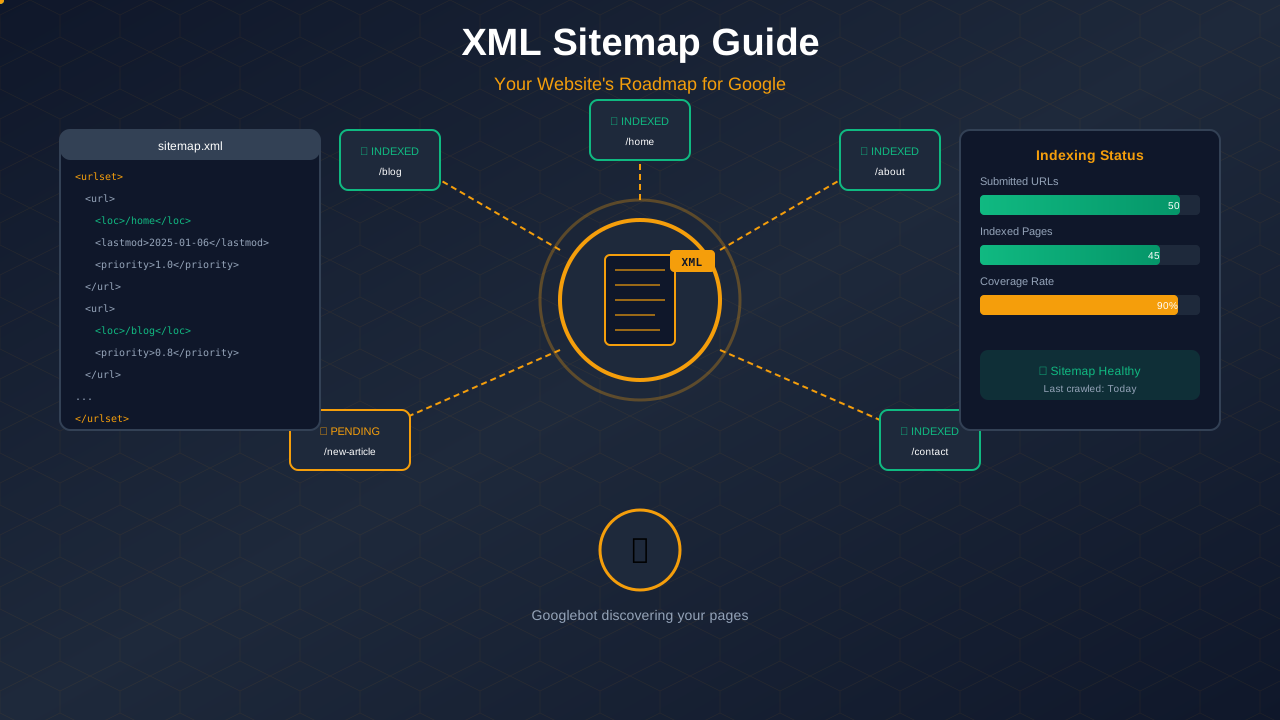
An XML sitemap is a file that lists all the important pages on your website in a format that search engines can easily read.
Purpose of Sitemaps
- Help search engines discover pages that might be hard to find through crawling
- Communicate the relative importance of pages
- Indicate when pages were last modified
- Improve indexing speed for new content
Who Needs a Sitemap?
Sitemaps are especially important for:
- New websites with few external links
- Large sites with many pages
- Sites with complex navigation
- Sites that publish content frequently
"A sitemap is a file where you provide information about the pages, videos, and other files on your site, and the relationships between them."
— Google Search Central Documentation
XML Sitemap Structure
Understanding the structure helps you create and troubleshoot sitemaps:
Basic Elements
- <urlset>: The container for all URLs
- <url>: Container for each page
- <loc>: The page URL (required)
- <lastmod>: Last modification date (optional but recommended)
- <changefreq>: How often the page changes (optional)
- <priority>: Relative importance from 0.0 to 1.0 (optional)
Example Sitemap
A basic sitemap looks like this:
<?xml version="1.0" encoding="UTF-8"?>
<urlset xmlns="http://www.sitemaps.org/schemas/sitemap/0.9">
  <url>
    <loc>https://example.com/</loc>
    <lastmod>2025-10-18</lastmod>
    <priority>1.0</priority>
  </url>
  <url>
    <loc>https://example.com/blog/</loc>
    <lastmod>2025-10-17</lastmod>
    <priority>0.8</priority>
  </url>
</urlset>
Creating Your XML Sitemap
There are several ways to create sitemaps:
See also: How to Fix Mixed Content Errors: Complete Guide for Blog Owners →
WordPress Plugins
If you use WordPress, plugins handle sitemap creation automatically:
- Yoast SEO: Creates and updates sitemaps automatically
- Rank Math: Full sitemap customization options
- All in One SEO: Automatic generation with settings
- Google Site Kit: Integrates with Search Console
Other CMS Platforms
- Wix: Automatic sitemap at /sitemap.xml
- Squarespace: Built-in sitemap generation
- Shopify: Automatic sitemap for all products and pages
- Ghost: Sitemap generated automatically
Online Generators
For static sites or custom needs:
- XML-Sitemaps.com
- Screaming Frog SEO Spider
- Sitemap Generator by Duplichecker
Custom Development
For developers building custom sites, generate sitemaps programmatically using your backend language. Most frameworks have sitemap libraries available.
XML Sitemap Best Practices
Follow these guidelines for optimal results:
Include Only Canonical URLs
- Only include the canonical version of each page
- Avoid including duplicate URLs
- Use consistent URL format (www vs non-www)
- Include proper trailing slashes consistently
Keep Sitemaps Updated
- Update lastmod dates when content changes
- Remove deleted pages promptly
- Add new pages as they are published
- Use dynamic generation when possible
Size Limits
- Maximum 50,000 URLs per sitemap file
- Maximum 50MB file size when uncompressed
- Use sitemap index files for larger sites
- Compress large sitemaps with gzip
"Only include canonical URLs in your sitemap. Don't include URLs that redirect or URLs that return 404 errors."
You might also find helpful: URL Structure Best Practices: Clean URLs That Boost SEO & AdSense Revenue →
— Google Search Central
What to Include
- All indexable pages you want found
- Blog posts and articles
- Important category pages
- Key landing pages
What to Exclude
- Pages with noindex tags
- Duplicate content pages
- Parameter-based URLs
- Admin or login pages
- Empty or thin content pages
Submitting Your Sitemap to Google
After creating your sitemap, submit it to Google:
Via Google Search Console
- Log into Google Search Console
- Select your property
- Go to "Sitemaps" in the left menu
- Enter your sitemap URL (e.g., /sitemap.xml)
- Click "Submit"
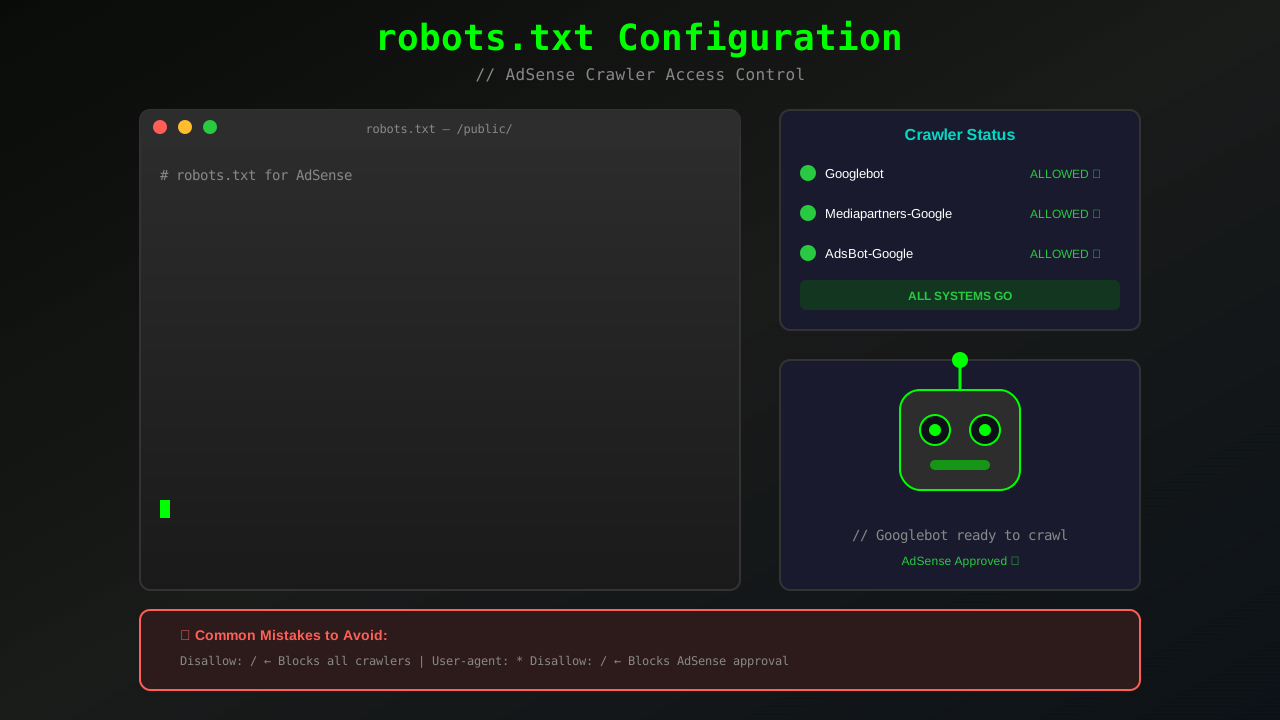
Via robots.txt
Add a line to your robots.txt file:
Sitemap: https://yourwebsite.com/sitemap.xmlAfter Submission
Google will show:
- Submission status and any errors
- Number of URLs discovered
- Last read date
- Coverage issues if any
Sitemap Index Files
For large sites, use sitemap index files to organize multiple sitemaps:
When to Use
- More than 50,000 URLs
- Want to organize by content type
- Multiple sections with different update frequencies
Index File Structure
<?xml version="1.0" encoding="UTF-8"?>
<sitemapindex xmlns="http://www.sitemaps.org/schemas/sitemap/0.9">
  <sitemap>
    <loc>https://example.com/sitemap-posts.xml</loc>
    <lastmod>2025-10-18</lastmod>
  </sitemap>
  <sitemap>
    <loc>https://example.com/sitemap-pages.xml</loc>
    <lastmod>2025-10-15</lastmod>
  </sitemap>
</sitemapindex>
Common Sitemap Errors and Fixes
These issues commonly affect sitemaps:
You might also find helpful: Structured Data Testing Guide: Validate Schema Markup Like a Pro →
Invalid URL Format
Problem: URLs contain spaces or special characters
Fix: URL-encode special characters and remove spaces
Wrong HTTP Status
Problem: URLs in sitemap return 404 or redirect
Fix: Remove non-200 URLs from sitemap
Blocked by robots.txt
Problem: Sitemap or URLs are blocked
For more on this topic, see our guide on Canonical Tags & Duplicate Content: The Complete SEO Fix Guide →
Fix: Allow access in robots.txt and ensure your internal linking connects all important pages
Outdated lastmod Dates
Problem: Dates do not reflect actual changes
Fix: Only update lastmod when content actually changes
Missing XML Declaration
Problem: File does not start with proper declaration
Fix: Add <?xml version="1.0" encoding="UTF-8"?> at top
Learn more in HTTPS & SSL Security: Essential Guide for AdSense Sites →
Monitoring Sitemap Performance
Regularly check your sitemap health:
In Search Console
- Check for submission errors
- Monitor discovered vs indexed URLs
- Review coverage report for issues
- Watch for sudden drops in indexed pages
Regular Maintenance
- Weekly: Check for submission errors
- Monthly: Verify URLs are correct and current
- Quarterly: Audit for orphaned or missing pages
Frequently Asked Questions
Does having a sitemap improve rankings?
Sitemaps do not directly improve rankings. They help Google discover and index your pages faster, which allows your content to compete in search results sooner. For direct ranking improvements, focus on Core Web Vitals optimization.
How often should I update my sitemap?
Sitemaps should update automatically whenever you publish new content or update existing pages. If using a CMS with a plugin, this happens automatically.
Can I have multiple sitemaps?
Yes. You can have separate sitemaps for different content types (posts, pages, images) and use a sitemap index to reference them all.
Should I include images in my sitemap?
You can create a separate image sitemap or include image tags within your regular sitemap. This helps Google index your images for image search.
Why is my sitemap showing errors in Search Console?
Common causes include invalid URLs, blocked pages, or formatting issues. Check the specific error message in Search Console for guidance on fixing the issue.