![Image Optimization for Blogs: Compress Without Quality Loss [2025 Guide]](/images/articles/image-optimization-blogs-compress.svg)
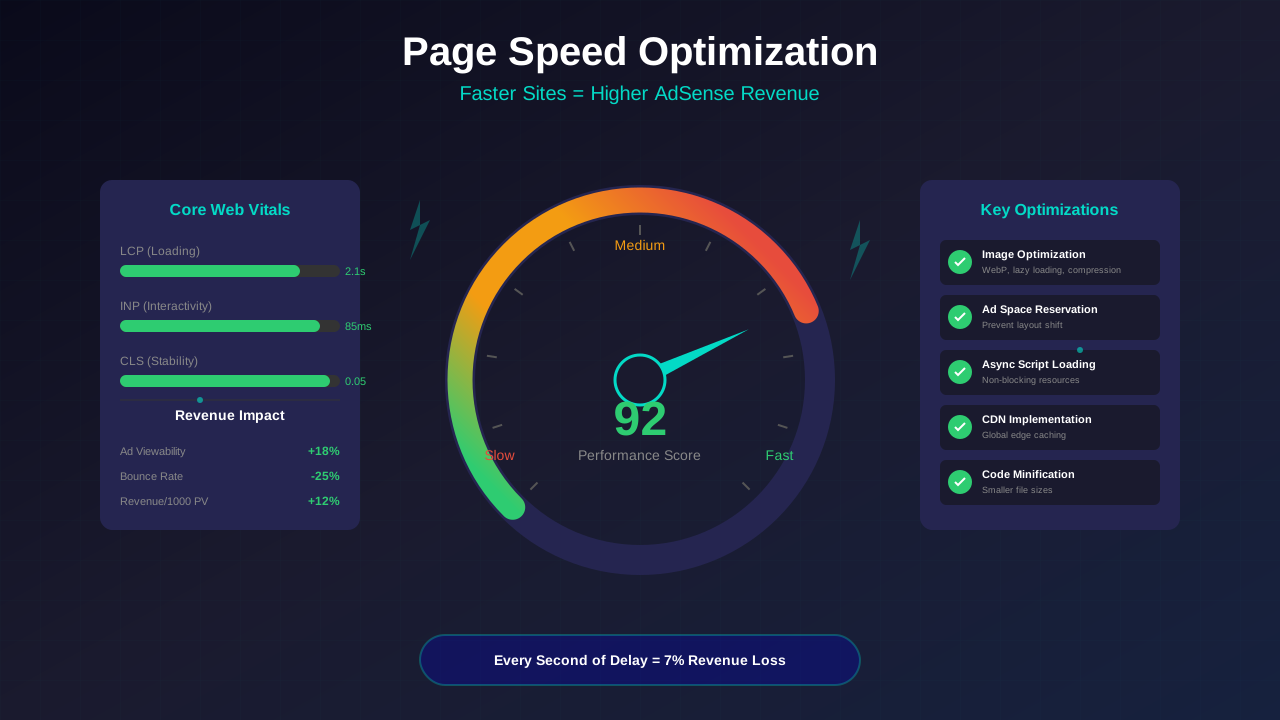
Images often account for 50-70% of a web page's total weight. Unoptimized images slow your site, hurt Core Web Vitals, damage search rankings, and reduce ad viewability. The good news? Proper image optimization can dramatically improve performance without sacrificing visual quality.
In this comprehensive guide, you will learn every aspect of image optimization—from choosing the right format to advanced compression techniques that keep your site fast and beautiful.
What You Will Learn:
- Why image optimization matters for SEO and ads
- Choosing the right image format
- Compression techniques and tools
- Responsive images for all devices
- Lazy loading implementation
Why Image Optimization Matters
Optimized images impact multiple aspects of your site's success:
Page Speed and Core Web Vitals
Understanding how images affect your Core Web Vitals scores is essential:
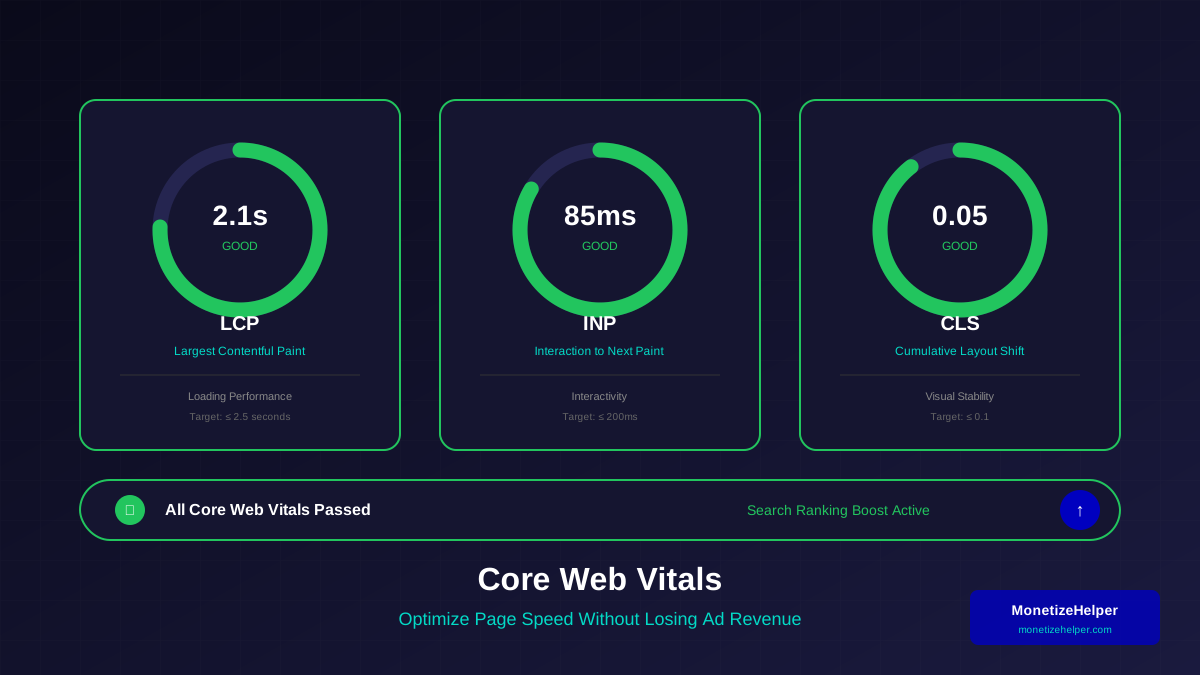
- Large images slow Largest Contentful Paint (LCP)
- Unoptimized images cause layout shifts (CLS)
- Faster pages rank better in Google
- Page speed directly affects bounce rate
AdSense Revenue Impact
- Faster loading improves ad viewability
- Better Core Web Vitals scores improve ad inventory
- Lower bounce rates mean more ad impressions
- Mobile optimization affects mobile ad performance
"A 1-second delay in page load time can result in a 7% reduction in conversions. For AdSense publishers, this translates directly to lost revenue."
— Web Performance Research
User Experience
- Slow images frustrate visitors
- Poor image quality damages credibility
- Mobile users on slow connections suffer most—proper mobile optimization is essential
- Visual content increases engagement when fast
Choosing the Right Image Format
Each format has specific strengths:
JPEG (JPG)
Best for: Photographs and complex images with many colors
See also: How to Fix Mixed Content Errors: Complete Guide for Blog Owners →
- Excellent compression for photos
- Does not support transparency
- Lossy compression (some quality loss)
- Universal browser support
PNG
Best for: Graphics, logos, screenshots, images needing transparency
- Supports transparency
- Lossless compression (no quality loss)
- Larger file sizes than JPEG for photos
- Great for text-heavy images
WebP
Best for: Most web images (modern approach)
- 30% smaller than JPEG at same quality
- Supports transparency like PNG
- Supports animation like GIF
- 95%+ browser support in 2025
AVIF
Best for: Maximum compression (newer format)
- 50% smaller than JPEG at same quality
- Excellent for photos and graphics
- Growing browser support (85%+)
- Slower encoding time
SVG
Best for: Logos, icons, simple graphics
You might also find helpful: URL Structure Best Practices: Clean URLs That Boost SEO & AdSense Revenue →
- Infinitely scalable (vector)
- Tiny file sizes for simple graphics
- Can be animated with CSS/JS
- Not suitable for photographs
Format Decision Chart
- Photo/complex image: WebP (with JPEG fallback)
- Screenshot/graphic: WebP or PNG
- Logo/icon: SVG
- Animated: WebP (or GIF for compatibility)
Compression Techniques
Reduce file size while maintaining quality:
Lossy vs. Lossless Compression
- Lossy: Removes some data permanently; smaller files
- Lossless: Preserves all data; larger files
- Recommendation: Use lossy for photos (70-85% quality), lossless for graphics
Quality Settings
For JPEG/WebP compression:
- 90-100%: Overkill; no visible benefit
- 80-90%: High quality; slight compression
- 70-80%: Sweet spot; invisible quality loss
- 60-70%: Noticeable on close inspection
- Below 60%: Visible artifacts; avoid
"The human eye cannot distinguish between 80% and 100% quality in most web images, but the file size difference can be 60% or more."
— Image Optimization Expert
Resize Before Uploading
Never upload images larger than needed:
You might also find helpful: Structured Data Testing Guide: Validate Schema Markup Like a Pro →
- Determine maximum display width on your site
- Resize to 2x that width for retina displays
- Example: 600px display = 1200px image
- Compress after resizing
Image Optimization Tools
Use these tools to optimize your images:
Online Tools (Free)
- TinyPNG/TinyJPG: Simple drag-and-drop compression
- Squoosh: Google's advanced compression tool
- Compressor.io: Multiple format support
- iLoveIMG: Batch compression
Desktop Software
- ImageOptim (Mac): Batch optimization
- RIOT (Windows): Visual comparison
- GIMP: Free photo editor with export options
- Photoshop: "Save for Web" feature
WordPress Plugins
- ShortPixel: Automatic optimization on upload
- Smush: Free optimization with pro features
- Imagify: Aggressive compression options
- EWWW: Local processing option
CDN-Based Optimization
- Cloudflare Polish: Automatic image optimization
- Cloudinary: Image transformation API
- imgix: Real-time image processing
Responsive Images for All Devices
Serve appropriately sized images to each device:
The srcset Attribute
Provide multiple image sizes for browser selection:
<img src="image-800.jpg"
     srcset="image-400.jpg 400w,
             image-800.jpg 800w,
             image-1200.jpg 1200w"
     sizes="(max-width: 600px) 100vw, 800px"
     alt="Description">
The picture Element
Serve different formats with fallbacks:
For more on this topic, see our guide on Canonical Tags & Duplicate Content: The Complete SEO Fix Guide →
<picture>
  <source srcset="image.avif" type="image/avif">
  <source srcset="image.webp" type="image/webp">
  <img src="image.jpg" alt="Description">
</picture>
WordPress Responsive Images
WordPress automatically generates multiple sizes and adds srcset. Ensure your theme uses featured images properly.
Implementing Lazy Loading
Defer loading of off-screen images:
Native Lazy Loading
Modern browsers support native lazy loading:
<img src="image.jpg" loading="lazy" alt="Description">Benefits
Lazy loading is a key technique for overall page speed optimization:
Learn more in HTTPS & SSL Security: Essential Guide for AdSense Sites →
- Faster initial page load
- Reduced bandwidth for users who do not scroll
- Improves Core Web Vitals
- Works with AdSense (ads load independently)
When Not to Lazy Load
- Above-the-fold images (hero images, logos)
- LCP element images (these should load immediately)
- Critical content images
Alt Text and SEO
Alt text affects accessibility and SEO:
Writing Good Alt Text
- Describe the image accurately
- Include relevant keywords naturally
- Keep under 125 characters
- Do not start with "image of" or "picture of"
Examples
- Bad: "Image"
- Bad: "best running shoes for flat feet image buy now"
- Good: "Woman testing running shoes on a treadmill"
- Good: "AdSense dashboard showing revenue reports"
Image Optimization Checklist
Use this checklist for every image:
- ☐ Chosen appropriate format (WebP preferred)
- ☐ Resized to appropriate dimensions
- ☐ Compressed with proper quality setting (70-85%)
- ☐ File size under 200KB for most images
- ☐ Added descriptive alt text
- ☐ Responsive srcset provided
- ☐ Lazy loading enabled (below-fold images)
- ☐ Proper dimensions specified (prevents CLS)
Frequently Asked Questions
What is the ideal file size for blog images?
Aim for under 100KB for regular blog images and under 200KB for featured images. Hero images can be up to 300KB if necessary. Total page images should not exceed 1MB for good performance.
Will WebP work for all my visitors?
In 2025, over 95% of browsers support WebP. Use the picture element to provide JPEG fallback for the rare older browser, or let your CDN/WordPress plugin handle fallbacks automatically.
Should I use a CDN for images?
Yes, if your site has significant traffic or global audience. CDNs reduce server load, improve loading speed, and often include automatic image optimization features.
How do I optimize images that are already uploaded?
Use plugins like ShortPixel or Smush to bulk-optimize existing images. They can process your entire media library without re-uploading.
Does image optimization affect image search rankings?
Optimized images can actually improve image search rankings because proper alt text, fast loading, and appropriate sizing are ranking factors for Google Images.