Core Web Vitals are now part of how Google ranks websites. Sites with bad scores might show up lower in search results. But AdSense ads can hurt your scores if you set them up wrong. This guide helps you get both—great scores and good ad money.
Here's the problem: Ads make your pages heavier. They load extra code, make things jump around, and can slow everything down. But don't worry! With the right tricks, you can keep your ads and your speed.
What You Will Learn:
- How each Core Web Vital is changed by ads
- Simple ways to fix LCP, CLS, and INP
- Code examples you can copy and use
- How to check your scores over time
- Balance between speed and revenue
What Are Core Web Vitals?
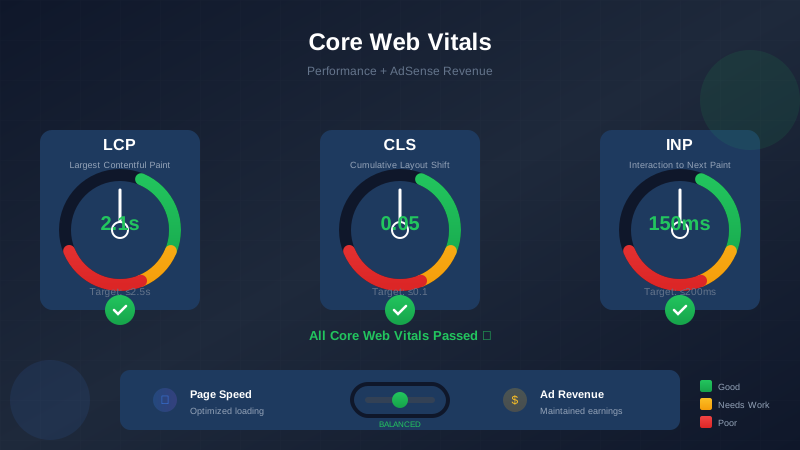
Core Web Vitals are three specific metrics Google uses to measure user experience on your website. They became a ranking factor in 2021 and continue to influence search rankings.
The Three Core Web Vitals
| Metric | What It Measures | Good Score | Poor Score |
|---|---|---|---|
| LCP (Largest Contentful Paint) | Loading performance | ≤ 2.5 seconds | > 4 seconds |
| CLS (Cumulative Layout Shift) | Visual stability | ≤ 0.1 | > 0.25 |
| INP (Interaction to Next Paint) | Responsiveness | ≤ 200ms | > 500ms |
Why They Matter for AdSense Sites
Poor Core Web Vitals can hurt you in two ways:
- Lower search rankings: Less organic traffic means less ad revenue
- Higher bounce rates: Slow, jumpy pages frustrate users who leave quickly
"Pages that meet Core Web Vitals thresholds see 24% fewer page abandonment compared to pages that don't."
— Google Research on Page Experience
How AdSense Affects Core Web Vitals
AdSense code impacts each Core Web Vital differently. Understanding these impacts helps you target your optimization efforts.
Impact on LCP (Loading)
AdSense affects LCP by:
- Loading external scripts (adsbygoogle.js)
- Fetching ad content from Google servers
- Rendering ad creatives (images, video)
- Competing for bandwidth with your content
Typical LCP impact: +300ms to +1.5 seconds
Impact on CLS (Layout Shifts)
AdSense is the most common cause of CLS problems:
See also: How to Fix Mixed Content Errors: Complete Guide for Blog Owners →
- Ads loading after content pushes page down
- Responsive ads changing size dynamically
- Anchor ads appearing and shifting content
- Multiple ads loading at different times
Typical CLS impact: +0.05 to +0.3 (often pushing sites into "poor" range)
Impact on INP (Interactivity)
AdSense affects INP through:
- JavaScript execution blocking the main thread
- Event listeners on ad elements
- Third-party scripts from ad networks
- Bidding and auction processes
Typical INP impact: +50ms to +200ms
| Metric | Impact Level | Optimization Difficulty | Priority |
|---|---|---|---|
| LCP | Medium | Medium | High |
| CLS | High | Easy to Medium | Very High |
| INP | Low to Medium | Hard | Medium |
LCP Optimization with Ads
The key to good LCP is ensuring your main content loads before ads compete for resources.
1. Prioritize Content Over Ads
Load your content first, then ads. Use resource hints to tell browsers what is important:
<!-- Preload critical content resources -->
<link rel="preload" href="/critical-styles.css" as="style">
<link rel="preload" href="/hero-image.webp" as="image">

<!-- Defer AdSense loading -->
<script async src="https://pagead2.googlesyndication.com/pagead/js/adsbygoogle.js"
        crossorigin="anonymous"></script>
2. Optimize Your LCP Element
Identify your LCP element (usually your hero image or main heading) and optimize it:
You might also find helpful: URL Structure Best Practices: Clean URLs That Boost SEO & AdSense Revenue →
- Use modern formats (WebP, AVIF) for images
- Add width and height attributes
- Use fetchpriority="high" for LCP images
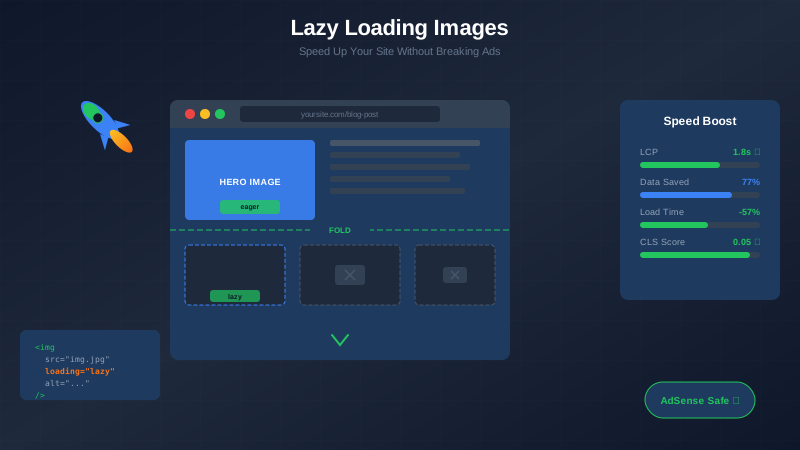
- Avoid lazy loading the LCP element
<!-- Optimized LCP image -->
<img src="hero.webp"
     alt="Article hero"
     width="1200"
     height="630"
     fetchpriority="high"
     decoding="async">
3. Delay Non-Critical Ad Loading
Load below-fold ads after the page becomes interactive:
// Load below-fold ads after LCP
if ('requestIdleCallback' in window) {
  requestIdleCallback(() => {
    loadBelowFoldAds();
  });
} else {
  setTimeout(loadBelowFoldAds, 2000);
}

function loadBelowFoldAds() {
  const ads = document.querySelectorAll('.below-fold-ad');
  ads.forEach(ad => {
    (adsbygoogle = window.adsbygoogle || []).push({});
  });
}
4. Use AdSense Auto Ads Wisely
Auto ads can hurt LCP because they inject ads dynamically. Consider:
- Using manual ad placements for above-fold positions
- Configuring auto ads to only place below-fold
- Excluding specific page areas from auto ads
Preventing CLS from Ads
CLS is the most common issue with AdSense sites. The solution is reserving space for ads before they load.
1. Reserve Ad Space with CSS
Always define minimum heights for ad containers:
/* Reserve space for common ad sizes */
.ad-container {
  min-height: 250px; /* For 300x250 ads */
  background: #f0f0f0;
}

.ad-container-banner {
  min-height: 100px; /* For 320x100 mobile banners */
}

.ad-container-leaderboard {
  min-height: 90px; /* For 728x90 desktop leaderboard */
}
2. Use Aspect Ratio Containers
For responsive ads, use aspect ratio to maintain space:
.responsive-ad-container {
  aspect-ratio: 3 / 2; /* Common ad aspect ratio */
  width: 100%;
  max-width: 336px;
  background: #f5f5f5;
}

/* For anchor ads */
.anchor-ad-container {
  position: fixed;
  bottom: 0;
  height: 50px; /* Reserve space for anchor */
  width: 100%;
}
3. Implement Placeholder Technique
Show a placeholder while ads load, then replace it:
You might also find helpful: Structured Data Testing Guide: Validate Schema Markup Like a Pro →
<div class="ad-wrapper">
  <div class="ad-placeholder">
    <span>Loading advertisement...</span>
  </div>
  <ins class="adsbygoogle"
       style="display:block"
       data-ad-client="ca-pub-XXXXX"
       data-ad-slot="XXXXX"
       data-ad-format="auto"></ins>
</div>

<style>
.ad-wrapper {
  min-height: 280px;
  position: relative;
}
.ad-placeholder {
  position: absolute;
  top: 0;
  left: 0;
  right: 0;
  bottom: 0;
  background: #f9f9f9;
  display: flex;
  align-items: center;
  justify-content: center;
  color: #999;
  font-size: 12px;
}
.adsbygoogle[data-ad-status="filled"] ~ .ad-placeholder {
  display: none;
}
</style>
4. Configure Auto Ads CLS Settings
In AdSense settings, you can enable "Optimize existing ad units for CLS" which helps reduce shifts from auto ads.
"The single most effective CLS fix for AdSense sites is reserving space for ad containers before ads load."
— Web Performance Best Practice
INP Improvements for Ad Pages
INP measures how quickly your page responds to user interactions. Ads can block the main thread and slow responses.
1. Defer Non-Critical JavaScript
Load AdSense and other scripts without blocking:
<!-- Use async attribute (already recommended by Google) -->
<script async src="https://pagead2.googlesyndication.com/pagead/js/adsbygoogle.js"></script>

<!-- For other third-party scripts, use defer -->
<script defer src="/analytics.js"></script>
2. Break Up Long Tasks
If you have custom ad initialization code, break it into smaller chunks:
// Instead of initializing all ads at once
async function initializeAds() {
  const adSlots = document.querySelectorAll('.adsbygoogle');

  for (const slot of adSlots) {
    // Yield to main thread between ads
    await new Promise(resolve => setTimeout(resolve, 0));
    (adsbygoogle = window.adsbygoogle || []).push({});
  }
}

// Call after page loads
if (document.readyState === 'complete') {
  initializeAds();
} else {
  window.addEventListener('load', initializeAds);
}
3. Use Web Workers for Heavy Processing
If you have custom ad-related calculations, offload them:
For more on this topic, see our guide on Canonical Tags & Duplicate Content: The Complete SEO Fix Guide →
// For heavy ad analytics processing
const worker = new Worker('/ad-analytics-worker.js');
worker.postMessage({ action: 'processImpressions', data: adData });
worker.onmessage = (e) => {
  // Handle results without blocking main thread
  console.log('Analytics processed:', e.data);
};
4. Minimize Third-Party Impact
Reduce third-party scripts that compete with AdSense:
- Audit all third-party scripts
- Remove unused tracking codes
- Consolidate analytics where possible
- Use facade patterns for heavy widgets
Implementation Guide
Follow this step-by-step guide to optimize your AdSense site for Core Web Vitals.
Step 1: Measure Current Performance
- Run PageSpeed Insights on key pages
- Check Search Console Core Web Vitals report
- Note your current scores for LCP, CLS, INP
- Identify which metrics need improvement
Step 2: Implement CLS Fixes First
CLS is usually the biggest issue and easiest to fix:
- Add min-height to all ad containers
- Update CSS for responsive ad units
- Test on mobile and desktop
- Verify CLS improvement in lab tests
Step 3: Optimize LCP
- Identify your LCP element
- Optimize images (format, size, loading)
- Ensure ads do not delay LCP
- Add resource hints for critical assets
Step 4: Improve INP
- Audit JavaScript execution time
- Ensure async loading for all ad scripts
- Break up long tasks
- Test interaction responsiveness
Step 5: Monitor and Iterate
- Set up ongoing monitoring
- Track field data (real user metrics)
- Compare before/after revenue
- Continue optimizing based on data
| Phase | Focus | Time Required | Expected Impact |
|---|---|---|---|
| 1. Measure | Baseline | 1 day | None (data gathering) |
| 2. CLS Fixes | Layout stability | 2-3 days | High |
| 3. LCP Optimization | Loading speed | 3-5 days | Medium-High |
| 4. INP Improvements | Interactivity | 2-4 days | Medium |
| 5. Monitoring | Ongoing | Continuous | Maintenance |
Monitoring and Testing Tools
Use these tools to measure and track your Core Web Vitals performance.
Lab Testing Tools
- PageSpeed Insights: Google's official tool with both lab and field data
- Lighthouse: Built into Chrome DevTools
- WebPageTest: Detailed waterfall analysis
- Chrome DevTools Performance: Real-time debugging
Field Data Sources
- Search Console: Core Web Vitals report with real user data
- Chrome UX Report (CrUX): Public dataset of user experience metrics
- web-vitals JavaScript library: Measure in your own analytics
Implementing web-vitals Library
// Add to your site to track real user metrics
import {onLCP, onCLS, onINP} from 'web-vitals';

function sendToAnalytics(metric) {
  // Send to your analytics service
  gtag('event', metric.name, {
    value: Math.round(metric.value),
    event_category: 'Web Vitals',
    event_label: metric.id,
    non_interaction: true,
  });
}

onLCP(sendToAnalytics);
onCLS(sendToAnalytics);
onINP(sendToAnalytics);
Balancing Speed and Revenue
Sometimes you need to make trade-offs. Here is how to think about the balance:
- Better CWV = Better rankings = More traffic = More revenue
- Too aggressive optimization = Fewer ads = Less immediate revenue
Start with CLS fixes (minimal revenue impact, big CWV improvement) and work toward more aggressive optimizations only if needed.
Learn more in HTTPS & SSL Security: Essential Guide for AdSense Sites →
For more on page speed optimization, see our complete site speed guide.
Frequently Asked Questions
Will optimizing for Core Web Vitals reduce my AdSense revenue?
Not necessarily. Most CWV optimizations (like reserving ad space for CLS) do not affect ad performance. In fact, faster pages often have better engagement and more pageviews, which can increase total revenue. The key is optimizing smartly rather than removing ads.
Can I pass Core Web Vitals with AdSense ads?
Yes, absolutely. Many sites with AdSense achieve "Good" status on all three Core Web Vitals. It requires proper implementation: reserved ad space, optimized loading order, and efficient JavaScript handling. Follow this guide and you can achieve good scores.
Which Core Web Vital is most affected by ads?
CLS (Cumulative Layout Shift) is most commonly affected by ads because ads load dynamically and push content around. This is also the easiest to fix by reserving space for ads before they load. LCP is moderately affected, and INP is usually least affected.
How long does it take to see CWV improvements in Search Console?
Search Console uses field data from real users over a 28-day rolling window. After implementing fixes, you will see lab improvements immediately in PageSpeed Insights, but field data in Search Console takes about a month to fully reflect changes.
Should I disable auto ads to improve Core Web Vitals?
Not necessarily. Auto ads can work with good CWV if configured properly. However, if you are struggling to pass CWV thresholds, switching to manual ad placements gives you more control. You can reserve exact space for each ad and control loading order more precisely.