
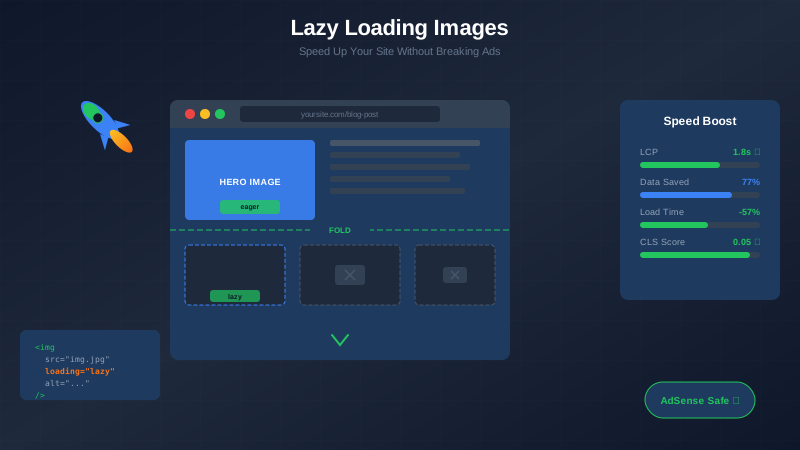
Lazy loading images can cut your page load time in half. But do it wrong, and you could hurt your AdSense revenue. This guide shows you exactly how to speed up your site without breaking your ads.
Slow websites lose visitors. Google says 53% of mobile users leave a page that takes more than 3 seconds to load. That means lost ad impressions and lower revenue.
The good news? Lazy loading is one of the easiest ways to speed up your site. And when done right, it works perfectly with AdSense.
What You Will Learn:
- What lazy loading is and how it works
- Why it matters for AdSense publishers
- 7 implementation methods (with code examples)
- Common mistakes that break ads
- How to test your implementation
What Is Lazy Loading?
Lazy loading is a technique that delays loading images until users need to see them. Instead of loading every image when the page opens, images load only when users scroll near them. This simple change can dramatically improve your page speed.
Think of it like a restaurant menu. You do not cook every dish the moment a customer walks in. You prepare each dish when it is ordered. Lazy loading works the same way—it loads images only when visitors are about to see them.
"Lazy loading is one of the most effective ways to improve page performance without sacrificing user experience. It reduces initial page weight and saves bandwidth for users who don't scroll through the entire page."
— Google Developers Documentation
The Technical Definition
Lazy loading defers the loading of off-screen images (below the fold) until the user scrolls to them. It uses the Intersection Observer API or native browser support to detect when images enter the viewport.
Why Lazy Loading Matters for AdSense
Your page speed directly affects your ad revenue. Here is why lazy loading is crucial for AdSense publishers:
1. Better Core Web Vitals
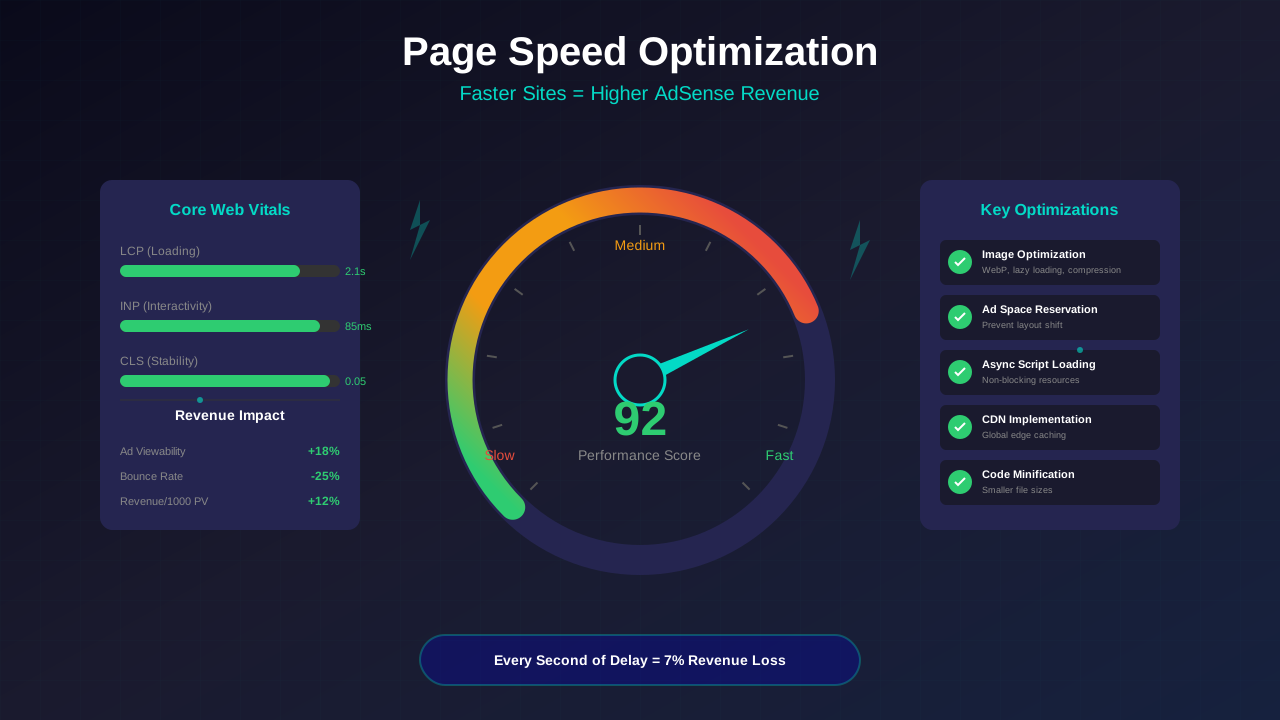
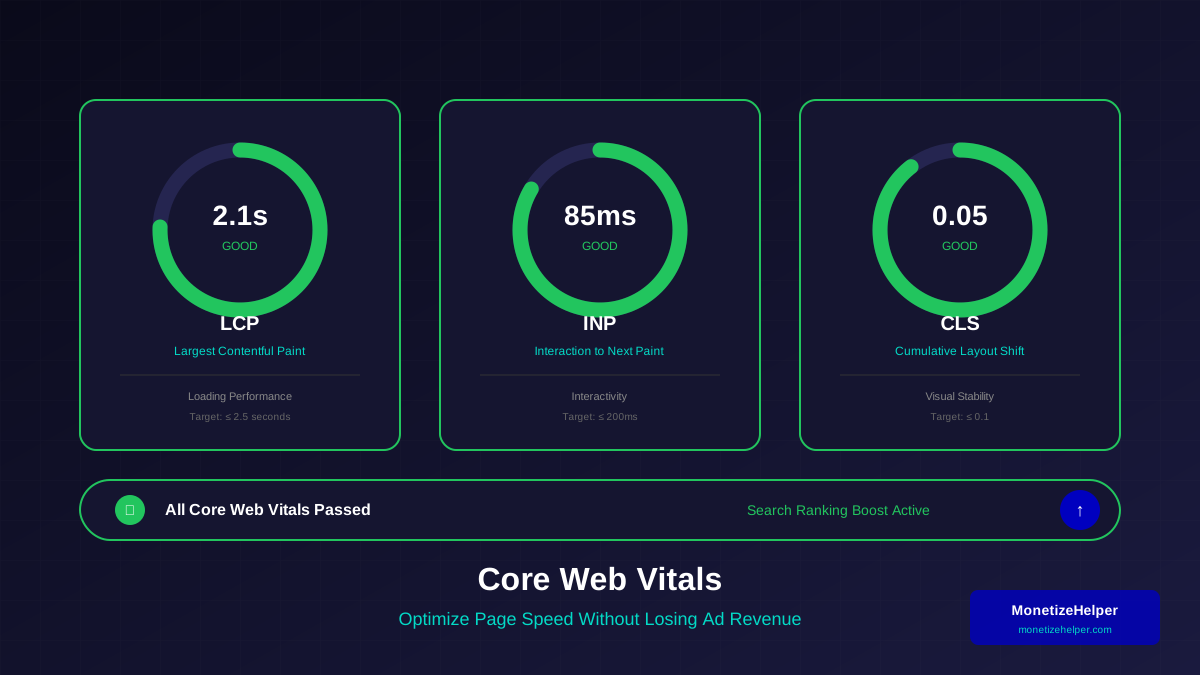
Google uses Core Web Vitals to rank websites. Lazy loading improves two key metrics:
- Largest Contentful Paint (LCP): Fewer images loading means faster LCP
- Cumulative Layout Shift (CLS): Proper implementation prevents layout shifts
2. Higher Ad Viewability
Faster pages mean more visitors stay. More visitors mean more ad impressions. According to Google research, a 1-second delay in page load can reduce conversions by 7%.
3. Lower Bounce Rate
Slow sites frustrate users. They leave before seeing your content—or your ads. Lazy loading keeps visitors engaged by showing content instantly.
Impact on Page Speed: Before vs After
| Metric | Without Lazy Loading | With Lazy Loading | Improvement |
|---|---|---|---|
| Initial Page Load | 4.2 seconds | 1.8 seconds | 57% faster |
| Data Transferred | 3.5 MB | 800 KB | 77% less |
| LCP Score | 3.8 seconds | 1.9 seconds | 50% faster |
| Time to Interactive | 5.1 seconds | 2.3 seconds | 55% faster |
"Pages that load within 2 seconds have an average bounce rate of 9%, while pages that take 5 seconds to load see their bounce rates jump to 38%."
See also: How to Fix Mixed Content Errors: Complete Guide for Blog Owners →
— Pingdom Research Study
How Lazy Loading Works
Understanding the mechanics helps you implement it correctly. Here is how lazy loading works step by step:
Step 1: Placeholder Setup
When the page loads, images below the fold get placeholders instead of actual image data. This keeps the page layout stable.
Step 2: Scroll Detection
The browser watches for scrolling. It tracks which parts of the page are visible to the user.
Step 3: Image Loading
When an image placeholder enters (or approaches) the viewport, the browser fetches the actual image. The placeholder transforms into the real image seamlessly.
Native Browser Support
Modern browsers support lazy loading natively. You just add one attribute to your image tag:
<img src="photo.jpg" loading="lazy" alt="Description">That is it. The browser handles everything else automatically.
7 Ways to Implement Lazy Loading
Choose the method that fits your website setup. Each has pros and cons.
Method 1: Native HTML Attribute (Easiest)
The simplest approach uses the native loading attribute. Works in Chrome, Firefox, Edge, and Safari.
<!-- Basic implementation -->
<img
  src="my-image.jpg"
  loading="lazy"
  alt="Descriptive text"
  width="800"
  height="450"
>

<!-- For iframes (including embedded content) -->
<iframe
  src="https://example.com/embed"
  loading="lazy"
  width="560"
  height="315"
></iframe>
Pros: No JavaScript required, browser-optimized, easy to implement
You might also find helpful: URL Structure Best Practices: Clean URLs That Boost SEO & AdSense Revenue →
Cons: Limited customization, no fallback for very old browsers
Method 2: WordPress Built-in (For WordPress Sites)
WordPress 5.5 and later adds lazy loading automatically to all images. You do not need to do anything if your theme is updated.
To check if it is working, view your page source. You should see loading="lazy" on your images.
Pro tip: Make sure your first image (LCP element) does NOT have lazy loading. Add this to your functions.php:
// Remove lazy loading from first image
function remove_lazy_loading_from_first_image($value, $image, $context) {
    if ('the_content' === $context) {
        static $count = 0;
        $count++;
        if ($count === 1) {
            return false; // Don't lazy load first image
        }
    }
    return $value;
}
add_filter('wp_img_tag_add_loading_attr', 'remove_lazy_loading_from_first_image', 10, 3);
Method 3: Intersection Observer API (Advanced Control)
For complete control, use JavaScript with the Intersection Observer API:
<!-- HTML -->
<img
  class="lazy"
  data-src="actual-image.jpg"
  src="placeholder.jpg"
  alt="Description"
>

<!-- JavaScript -->
<script>
document.addEventListener("DOMContentLoaded", function() {
  const lazyImages = document.querySelectorAll("img.lazy");

  const imageObserver = new IntersectionObserver((entries, observer) => {
    entries.forEach(entry => {
      if (entry.isIntersecting) {
        const img = entry.target;
        img.src = img.dataset.src;
        img.classList.remove("lazy");
        observer.unobserve(img);
      }
    });
  }, {
    rootMargin: "100px 0px" // Load 100px before entering viewport
  });

  lazyImages.forEach(img => imageObserver.observe(img));
});
</script>
Pros: Full control over timing, custom loading thresholds, works everywhere
Cons: Requires JavaScript, more complex setup
Method 4: Plugin Solutions (Quick Setup)
WordPress plugins handle lazy loading automatically:
| Plugin | Best For | Free Version | AdSense Compatible |
|---|---|---|---|
| WP Rocket | Complete caching + lazy loading | No (Paid) | Yes |
| Smush | Image optimization + lazy load | Yes | Yes |
| a3 Lazy Load | Dedicated lazy loading | Yes | Yes |
| Perfmatters | Performance optimization | No (Paid) | Yes |
Method 5: CDN-Based Lazy Loading
Content Delivery Networks like Cloudflare offer automatic lazy loading:
You might also find helpful: Structured Data Testing Guide: Validate Schema Markup Like a Pro →
- Log into your Cloudflare dashboard
- Go to Speed → Optimization
- Enable "Rocket Loader" or "Mirage" (for images)
- Save changes
Pros: No code changes, automatic optimization, global CDN benefits
Cons: Less control, may conflict with some scripts
Method 6: Framework-Specific Solutions
Modern frameworks have built-in lazy loading:
// Next.js - Automatic lazy loading
import Image from 'next/image'

<Image
  src="/my-image.jpg"
  alt="Description"
  width={800}
  height={450}
  priority={false} // Set true for above-fold images
/>

// React with react-lazyload
import LazyLoad from 'react-lazyload';

<LazyLoad height={200} offset={100}>
  <img src="image.jpg" alt="Description" />
</LazyLoad>
Method 7: LQIP (Low Quality Image Placeholder)
Show a tiny, blurred version of the image while the full image loads:
<style>
.blur-load {
  background-size: cover;
  background-position: center;
}
.blur-load::before {
  content: "";
  position: absolute;
  inset: 0;
  background: inherit;
  filter: blur(20px);
  animation: unblur 0.5s forwards;
}
@keyframes unblur {
  to { filter: blur(0); }
}
</style>

<div class="blur-load" style="background-image: url(tiny-placeholder.jpg)">
  <img src="full-image.jpg" loading="lazy" alt="Description">
</div>
This creates a smooth visual experience as images load.
Common Mistakes That Break Ads
Lazy loading can hurt your AdSense revenue if done wrong. Avoid these critical mistakes:
Mistake 1: Lazy Loading Above-the-Fold Images
Never lazy load your hero image or LCP element. This hurts your Core Web Vitals score and delays the main content users came to see.
Fix: Add loading="eager" or priority attribute to above-fold images:
<img src="hero.jpg" loading="eager" alt="Hero image">Mistake 2: Not Setting Dimensions
Images without width and height cause layout shifts (bad CLS). Always include dimensions:
For more on this topic, see our guide on Canonical Tags & Duplicate Content: The Complete SEO Fix Guide →
<!-- Wrong -->
<img src="photo.jpg" loading="lazy" alt="Photo">

<!-- Correct -->
<img src="photo.jpg" loading="lazy" width="800" height="450" alt="Photo">
Mistake 3: Lazy Loading Ad Containers
Do NOT lazy load AdSense ad units. Google needs ads to load normally for proper tracking and revenue attribution.
Warning: Some lazy loading plugins accidentally target ad containers. Always exclude:
- Elements with class
.adsbygoogle - Google ad iframes
- Any ad-related scripts
Mistake 4: Too Aggressive Loading Threshold
If you wait until images are fully in the viewport, users see empty spaces. Set a comfortable margin:
// Load images 200px before they enter viewport
rootMargin: "200px 0px"
Mistake 5: Missing Fallbacks
Very old browsers do not support lazy loading. Provide a fallback:
<noscript>
  <img src="image.jpg" alt="Description">
</noscript>
"The loading attribute should be set to eager for any images that are in the initial viewport to ensure Largest Contentful Paint is not impacted."
— web.dev by Google
Testing Your Implementation
After implementing lazy loading, test to make sure it works correctly:
Test 1: Chrome DevTools
- Open your page in Chrome
- Press F12 to open DevTools
- Go to Network tab
- Filter by "Img"
- Reload the page
- Watch images load as you scroll
Images below the fold should NOT load until you scroll to them.
Test 2: PageSpeed Insights
- Visit PageSpeed Insights
- Enter your URL
- Check the "Diagnostics" section
- Look for "Defer offscreen images" - should be green
Test 3: Lighthouse Audit
- Open Chrome DevTools (F12)
- Go to Lighthouse tab
- Run Performance audit
- Check LCP and CLS scores
Test 4: Check AdSense Functionality
- Clear your browser cache
- Visit your page
- Verify all ads load correctly
- Check AdSense reports for any impression drops
- Monitor for the next 24-48 hours
Performance Testing Checklist
| Test | What to Check | Target |
|---|---|---|
| LCP Score | Largest Contentful Paint | Under 2.5 seconds |
| CLS Score | Cumulative Layout Shift | Under 0.1 |
| Image Requests | Initial page load images | Only above-fold images |
| Ad Loading | All ads display correctly | No missing/broken ads |
| Mobile Test | Works on mobile devices | Fast, no layout issues |
Best Practices Checklist
Follow this checklist to implement lazy loading correctly:
Before Implementation
- Identify which images are above the fold
- Mark hero/LCP images as priority (no lazy loading)
- Ensure all images have width and height attributes
- Back up your site before making changes
During Implementation
- Use native loading="lazy" when possible
- Set appropriate root margin (100-200px)
- Exclude ad containers from lazy loading
- Add proper aspect ratios to prevent CLS
- Include noscript fallbacks
After Implementation
- Test on multiple devices and browsers
- Run PageSpeed Insights before and after
- Monitor AdSense impressions for 48 hours
- Check Core Web Vitals in Search Console
- Verify no layout shifts occur
Platform-Specific Tips
| Platform | Recommendation |
|---|---|
| WordPress | Use native WP 5.5+ lazy loading + quality caching plugin |
| Blogger | Add native loading="lazy" to img tags in template |
| Custom HTML | Use native attribute + Intersection Observer fallback |
| React/Next.js | Use built-in Image component with priority prop |
| Shopify | Most modern themes include lazy loading automatically |
"Sites that improved their Core Web Vitals scores saw up to 24% fewer page abandonments."
Learn more in HTTPS & SSL Security: Essential Guide for AdSense Sites →
— Google Search Central Blog
Speed Up Your Site Today: Next Steps
Lazy loading is one of the easiest performance wins for any website. It reduces initial load time, improves Core Web Vitals, and keeps your AdSense revenue safe—when done correctly.
Here is your action plan:
- Start simple: Add
loading="lazy"to all below-fold images - Protect your LCP: Never lazy load your main content image
- Set dimensions: Always include width and height
- Exclude ads: Keep AdSense loading normally
- Test everything: Use PageSpeed Insights before and after
Ready to optimize further? Check out our complete Page Speed Optimization Guide for more ways to speed up your site and boost your ad revenue.
Frequently Asked Questions
Does lazy loading affect SEO?
No, lazy loading does not hurt SEO when implemented correctly. Google's crawler can handle lazy-loaded content. In fact, it can improve SEO by boosting your Core Web Vitals scores. Just make sure to use progressive enhancement so content is accessible without JavaScript.
Will lazy loading reduce my AdSense revenue?
Done correctly, lazy loading should not reduce revenue. In fact, faster page speeds often increase revenue because more visitors stay on your site. The key is to never lazy load ad containers themselves—only images.
Should I lazy load all images?
No. Never lazy load images that appear above the fold (the part of the page visible without scrolling). This includes your hero image, logo, and the first content image. Only lazy load images below the fold.
How do I know if lazy loading is working?
Open Chrome DevTools (F12), go to the Network tab, and filter by images. Reload your page and scroll slowly. Images should only appear in the network requests as you scroll near them. If all images load immediately, lazy loading is not working.
Which lazy loading method is best for WordPress?
For most WordPress sites, the built-in lazy loading (WordPress 5.5+) is sufficient. If you need more control, WP Rocket or Perfmatters plugins offer additional optimization options. Avoid using multiple lazy loading solutions together as they can conflict.
![Image Optimization for Blogs: Compress Without Quality Loss [2025 Guide]](/images/articles/image-optimization-blogs-compress.svg)