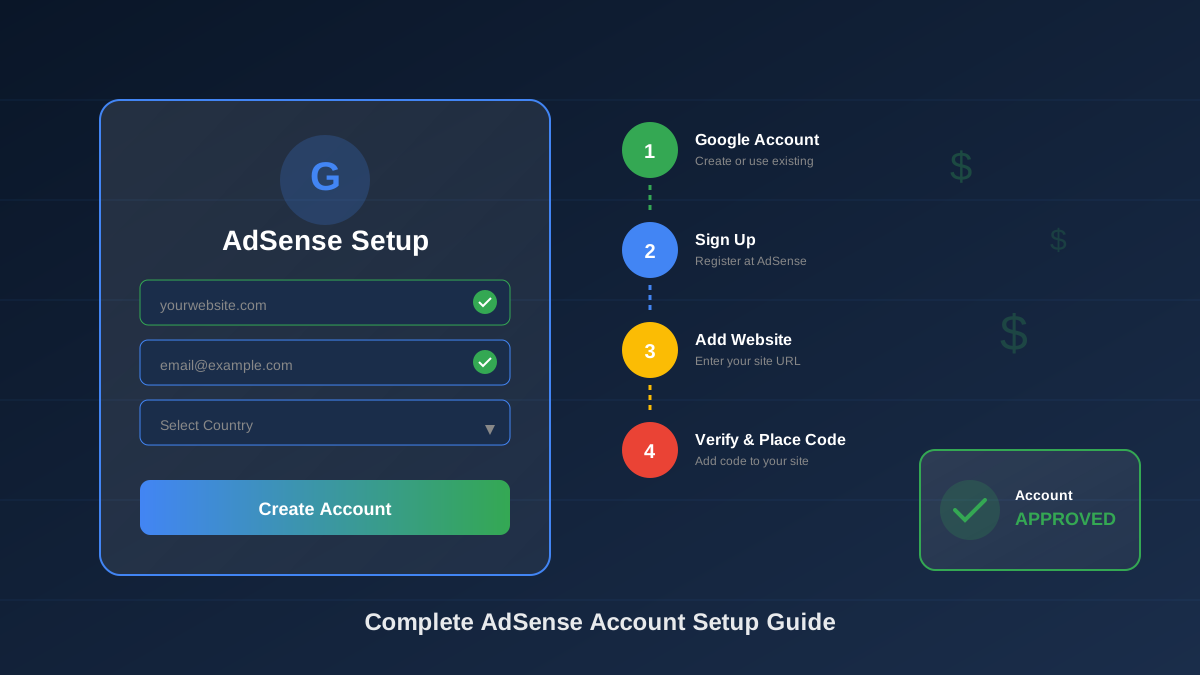
Setting up your Google AdSense account correctly from the start saves you time and headaches later. This guide walks you through every step, from creating your account to receiving your first payment.
Many bloggers rush through the setup process and make mistakes that delay approval. By following this guide carefully, you will set up your account the right way the first time.
What You Will Learn:
- Requirements before starting the setup
- Step-by-step account creation process
- How to add and verify your website
- Where and how to place ad code
- Setting up payments after approval
Before You Start: What You Need
Before creating your AdSense account, make sure you have everything ready. Missing items will slow down your setup.
Requirements Checklist
| Requirement | Why It Matters | Status |
|---|---|---|
| Google account | Required for AdSense login | Must have |
| Website or blog | Where ads will display | Must have |
| Quality content | At least 15-20 original articles | Must have |
| Privacy policy | Required by Google | Must have |
| Contact page | Shows site legitimacy | Recommended |
| About page | Builds trust with Google | Recommended |
| Own domain | Professional appearance | Recommended |
"Make sure your site is fully ready before applying. A well-prepared site gets approved faster than one that needs work."
— Google AdSense Help Center
Age Requirements
- You must be at least 18 years old
- If under 18, a parent or guardian can create the account
- The account holder is responsible for all activity
Step 1: Set Up Your Google Account
You need a Google account to use AdSense. If you already have Gmail, you can use that account.
Creating a New Google Account
- Go to accounts.google.com
- Click "Create account"
- Choose "For myself" or "To manage my business"
- Enter your name and create a username
- Create a strong password
- Add recovery phone and email
- Verify your account
Best Practices for Your Google Account
- Use your real name: Google verifies identity for payments
- Enable 2-factor authentication: Protects your earnings
- Use a professional email: Looks better for business
- Keep login details safe: This account controls your income
Step 2: Sign Up for Google AdSense
Now you can create your AdSense account. This process takes about 10 minutes.
Registration Process
-
Go to AdSense website:
Visit adsense.google.com and click "Get Started"
-
Sign in with Google:
Use the Google account you prepared in Step 1
See also: AdSense Approval Checklist 2026: 15 Steps to Get Approved Fast →
-
Enter your website URL:
Type your full website address (example: www.yoursite.com)
-
Choose email preferences:
Select whether you want tips and suggestions from AdSense
-
Select your country:
Choose where you live—this affects payment options
-
Accept terms and conditions:
Read and agree to the AdSense Program Policies
Country Selection Tips
Choose your country carefully:
See also: Google AdSense Best Practices 2026: What Works Now (and What Doesn't) →
- You cannot change your country after setup
- Country determines payment methods available
- Tax requirements vary by country
- Some countries have minimum payout thresholds
Step 3: Add Your Website
After creating your account, you need to add your website officially.
Adding Your Site
- In your AdSense dashboard, go to "Sites"
- Click "Add site"
- Enter your website URL without "https://"
- Click "Save and continue"
Multiple Websites
You can add multiple websites to one AdSense account:
- Each site must be reviewed separately
- All sites share the same payment account
- Sites can have different ad settings
- Add sites one at a time for best results
Step 4: Verify Your Site
Google needs to confirm you own the website. You have several verification options.
Verification Methods
| Method | Difficulty | Best For |
|---|---|---|
| AdSense code snippet | Easy | Most users |
| Ads.txt file | Easy | All publishers |
| Meta tag | Medium | Technical users |
Using AdSense Code Snippet (Recommended)
- Copy the code snippet from your AdSense dashboard
- Paste it between the <head> and </head> tags of your site
- The code should appear on every page
- Return to AdSense and click "Verify"
Setting Up Ads.txt
Google recommends adding an ads.txt file:
- Create a file named "ads.txt"
- Add the line:
google.com, pub-XXXXXXXXXXXXXXXX, DIRECT, f08c47fec0942fa0 - Replace pub-XXXX with your publisher ID
- Upload to your site's root folder
- Verify at yoursite.com/ads.txt
"Ads.txt helps protect your ad inventory from fraud and ensures advertisers know their ads are running on legitimate sites."
Learn more in AdSense YouTube vs Website: Which Earns More Money in 2026? →
— Google AdSense Documentation
Step 5: Place Ad Code on Your Site
After verification, you can start placing ads. This step determines where ads will show.
Ad Placement Options
| Option | Control Level | Best For |
|---|---|---|
| Auto Ads | Low (Google decides) | Beginners |
| Manual Ad Units | High (you decide) | Experienced users |
| Both Combined | Medium | Testing phase |
Setting Up Auto Ads
- Go to Ads → Overview in AdSense
- Click "Get code" next to Auto ads
- Copy the code snippet
- Paste between <head> tags on your site
- Google automatically places ads
Creating Manual Ad Units
- Go to Ads → By ad unit
- Click "Create new ad unit"
- Choose ad type (display, in-feed, in-article)
- Name your ad unit
- Select size and style
- Copy the generated code
- Paste where you want ads to appear
Best Ad Placements
- Above the fold: Visible without scrolling
- Within content: Between paragraphs
- After first paragraph: High visibility
- Sidebar: For desktop visitors
- End of article: Catches engaged readers
Step 6: Wait for Account Review
After placing code, Google reviews your site. This is the waiting period most publishers find challenging.
What Google Reviews
- Content quality and originality
- Site navigation and user experience
- Policy compliance
- Traffic sources
- Technical setup
Review Timeline
| Site Type | Typical Review Time |
|---|---|
| New sites | 2-4 weeks |
| Established sites | 1-2 weeks |
| Sites with issues | 4-8 weeks |
During the Review Period
Keep your site active:
- Continue publishing quality content
- Do not make major site changes
- Keep the ad code in place
- Monitor your email for updates
- Do not apply with other accounts
Approval Status Messages
| Status | Meaning | Action |
|---|---|---|
| Getting ready | Review in progress | Wait patiently |
| Needs attention | Issues found | Fix and resubmit |
| Ready | Approved | Start earning |
Step 7: Set Up Payments
Once approved, you need to complete payment setup to receive your earnings.
Payment Setup Steps
-
Add payment address:
Enter your full legal name and mailing address
Learn more in Free vs Self-Hosted Blogs for AdSense: Which One Gets Approved? →
-
Verify address:
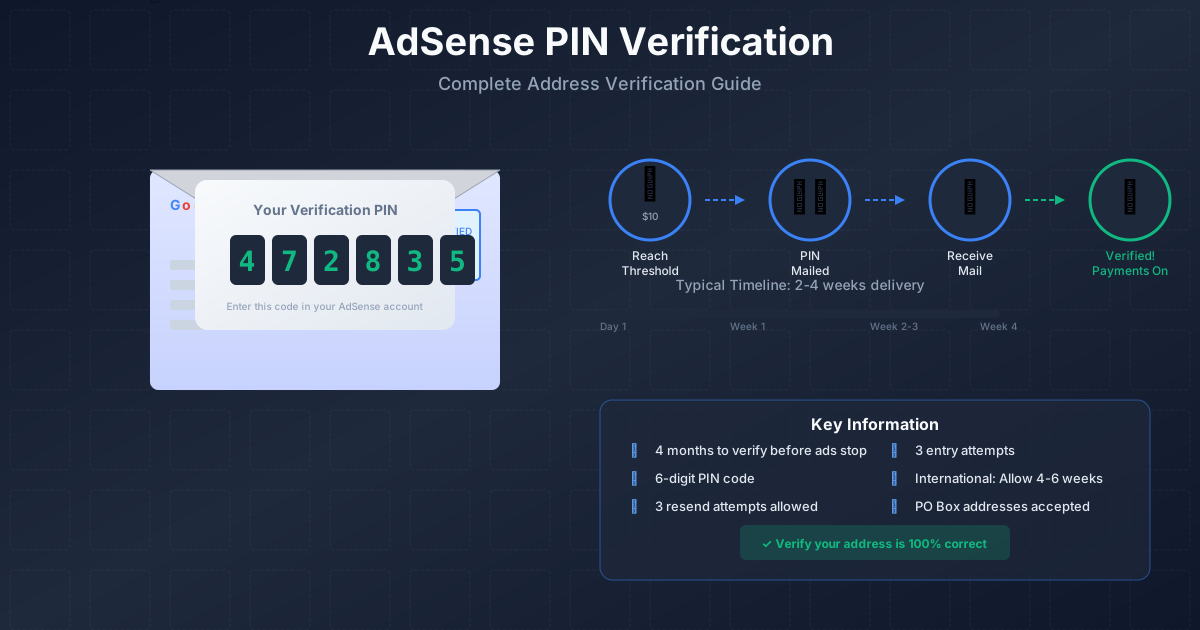
Google sends a PIN by mail (see our PIN verification guide)
-
Submit tax information:
Complete required tax forms for your country
-
Add payment method:
Choose bank transfer, check, or other options
Payment Methods by Region
| Region | Available Methods |
|---|---|
| United States | EFT, Check, Wire |
| Europe | SEPA, Wire |
| Nigeria | Wire Transfer |
| India | EFT |
| Other | Varies by country |
Payment Thresholds
You receive payment when earnings reach the threshold:
- Most countries: $100 USD equivalent
- Payments processed around the 21st of each month
- For the previous month's earnings
Common Mistakes to Avoid
Learn from others' errors to get approved faster.
Learn more in AdSense vs Alternatives: Which Ad Network Pays You More? →
Setup Mistakes
| Mistake | Problem | Solution |
|---|---|---|
| Wrong country selection | Cannot change later | Double-check before submitting |
| Using fake name | Payment issues | Use legal name matching ID |
| Multiple accounts | All accounts banned | One account per person |
| Code placement errors | Verification fails | Follow instructions exactly |
| Applying too early | Rejection likely | Prepare site fully first |
Content Mistakes
- Copied content: Always write original articles
- Too few articles: Have at least 15-20 posts
- No legal pages: Privacy policy is required
- Poor navigation: Make your site easy to use
"The most common reason for rejection is insufficient content. Take time to build your site before applying."
— AdSense Publisher Forum
What to Do After Approval
Congratulations on getting approved! Now focus on growing your earnings.
First Week Actions
- Test different ad placements
- Set up Auto Ads experiments
- Connect Google Analytics
- Learn the AdSense dashboard
- Read policy guidelines thoroughly
Ongoing Best Practices
- Publish content consistently
- Monitor earnings and metrics
- Optimize ad placements monthly
- Stay updated on policy changes
- Never click your own ads
For more detailed information, read our complete AdSense approval guide.
Frequently Asked Questions
Can I use AdSense on a free blog platform?
Yes, but with limits. Blogger (by Google) allows AdSense on free blogs. WordPress.com free plans do not allow external ads. For best results, use a self-hosted site with your own domain. This gives you full control and appears more professional to Google.
How long until I can apply again after rejection?
You can apply again immediately after fixing the issues Google mentioned. However, wait until you have truly addressed all problems. Repeatedly applying without fixing issues can result in longer reviews. Most publishers wait 2-4 weeks while improving their site.
Can I have AdSense on multiple websites?
Yes, one AdSense account can serve ads on multiple websites. Add each site in your AdSense dashboard under Sites. Each site goes through its own review process. All earnings combine into one payment.
What if I made a mistake in my country selection?
Unfortunately, you cannot change your country after creating your account. If you selected the wrong country, you may need to create a new account with correct information. Contact AdSense support for guidance on your specific situation.
Is it safe to use my personal Google account?
Yes, using your personal Google account is safe and common. However, some publishers prefer creating a dedicated account for business. Either approach works. The important thing is using your real name and keeping the account secure with two-factor authentication.