
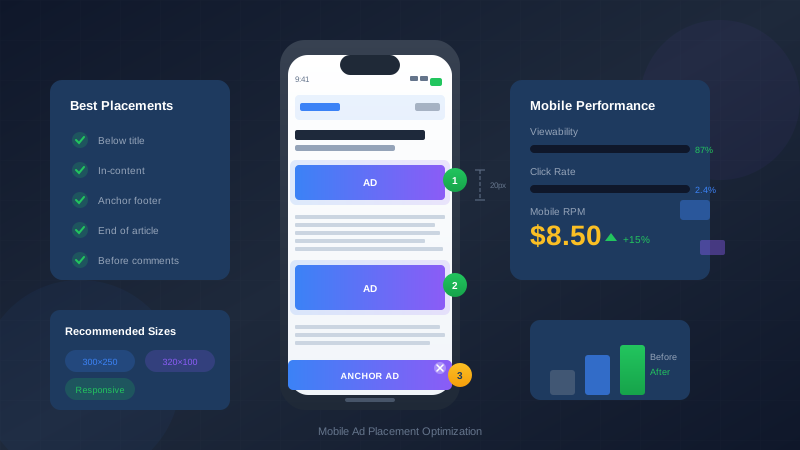
Mobile traffic now exceeds 60% for most websites, but mobile ad revenue often lags behind desktop. The challenge is fitting ads into smaller screens without destroying user experience. This guide shows you how to optimize mobile ad placements for both revenue and UX.
Mobile users are impatient. They scroll fast, have smaller screens, and will leave immediately if ads interfere with content. Getting mobile ads right requires understanding both user behavior and technical constraints.
What You Will Learn:
- Why mobile ads require different strategies
- Best performing mobile ad positions
- Optimal ad sizes for mobile devices
- How to balance ads with user experience
- Technical implementation for responsive ads
The Mobile Ad Challenge
Mobile advertising presents unique challenges that desktop does not have. Understanding these challenges is the first step to solving them.
Limited Screen Real Estate
A mobile screen is roughly one-fifth the size of a desktop screen. Every ad competes directly with content for visibility. Too many ads make content unreadable. Too few ads leave money on the table.
| Device Type | Average Screen Width | Usable Ad Width | Impact on Layout |
|---|---|---|---|
| Desktop | 1200-1920px | 728px+ ads work well | Sidebar + content possible |
| Tablet | 768-1024px | 336px ads optimal | Limited sidebar space |
| Mobile | 320-428px | 300-336px max | Single column only |
Touch vs Click Behavior
Mobile users tap, swipe, and scroll. This creates both opportunities and risks:
- Accidental clicks: Ads too close to navigation cause frustration
- Scroll patterns: Users scroll faster on mobile
- Thumb zones: Bottom of screen is easier to reach
- Fat finger problem: Touch targets need adequate spacing
Speed Expectations
Mobile users expect pages to load in under 3 seconds. Ads add weight to pages. Heavy ad implementations can double or triple load times, causing visitors to leave.
"53% of mobile visitors abandon sites that take longer than 3 seconds to load."
— Google Research on Mobile Speed
Best Mobile Ad Placements
These positions consistently perform well on mobile while maintaining good user experience.
1. Below the Title (Above First Paragraph)
This is the highest-performing mobile ad position. Users have committed to reading but have not started yet, making them receptive to ads.
See also: Content Formatting Tips That Boost CTR & Keep Readers on Your Blog →
Why it works:
- High viewability (nearly 100%)
- Does not interrupt reading flow
- Natural pause point
- Strong CTR performance
2. In-Content (After Paragraphs)
Place ads between paragraphs, ideally after 2-3 paragraphs of content. This maintains reading flow while ensuring ad visibility.
Best practices:
- Insert after natural content breaks
- Maximum 1 ad per screen height of content
- Never break mid-sentence or mid-paragraph
- Add padding above and below ads
3. Before Comments Section
Users who scroll to comments are highly engaged. This is prime real estate for ads.
4. Sticky Footer (Anchor Ads)
Anchor ads stick to the bottom of the screen as users scroll. Google's anchor ads are specifically designed for mobile and perform well.
Advantages:
You might also find helpful: SEO-Friendly URL Design: Best Practices for Clean, Clickable URLs →
- 100% viewability
- Does not interfere with content
- Easy dismiss option built in
- Consistent revenue
Disadvantages:
- Can feel intrusive to some users
- Takes up screen space
- May affect page experience scores
5. Post-Content (End of Article)
Users who finish an article are in a transition state, making them more receptive to ads or related content.
| Position | Viewability | CTR Performance | UX Impact |
|---|---|---|---|
| Below title | 95%+ | High | Low |
| In-content (mid-article) | 70-85% | Medium-High | Low-Medium |
| Before comments | 50-70% | Medium | Low |
| Sticky footer | 100% | Low-Medium | Medium |
| Post-content | 40-60% | Medium | Very Low |
Mobile Ad Sizing Guidelines
Not all ad sizes work on mobile. Using the right sizes improves both fill rates and user experience.
Recommended Mobile Ad Sizes
| Size | Dimensions | Best Position | Notes |
|---|---|---|---|
| Mobile Banner | 320×50 | Header, anchor | Standard mobile ad |
| Large Mobile Banner | 320×100 | In-content | Higher RPM than 320×50 |
| Medium Rectangle | 300×250 | In-content | Best performer overall |
| Large Rectangle | 336×280 | In-content | Higher revenue, needs space |
| Responsive | Auto | All positions | Recommended by Google |
Why Responsive Ads Are Best
Responsive ad units automatically adjust to available space. Google recommends them for mobile because:
- They adapt to different screen sizes
- Higher fill rates from larger ad inventory
- Better performance from optimized sizing
- Easier implementation (one code for all devices)
Sizes to Avoid on Mobile
- 728×90 Leaderboard: Too wide, causes horizontal scroll
- 160×600 Skyscraper: Designed for sidebars that don't exist on mobile
- 970×90: Way too large for mobile screens
Spacing and Scroll Considerations
Proper spacing prevents accidental clicks and improves user experience.
Minimum Spacing Requirements
Google requires adequate spacing between ads and clickable elements. Follow these guidelines:
See also: Ad Placement Strategies That Boost Revenue Without Hurting UX →
- Above ad: Minimum 20px padding
- Below ad: Minimum 20px padding
- From navigation: At least 150px
- From other interactive elements: 30px minimum
Scroll Depth Considerations
Place ads at natural scroll stopping points:
- First ad: Below title/intro (visible without scrolling)
- Second ad: After 2-3 paragraphs (first scroll)
- Third ad: Mid-article (engaged readers)
- Fourth ad: End of article (completion point)
Ad Density Rules
Do not stack ads close together. Google's ad balance recommendation:
"We recommend that ads don't take up more than 30% of any viewport on mobile devices."
— Google AdSense Best Practices
CSS Example for Proper Spacing
/* Mobile ad container */
.mobile-ad {
  margin: 25px auto;
  padding: 15px 0;
  text-align: center;
  max-width: 100%;
  overflow: hidden;
}

/* Ensure minimum spacing from clickable elements */
.mobile-ad + a,
.mobile-ad + button {
  margin-top: 30px;
}

/* Ad label for transparency */
.mobile-ad::before {
  content: "Advertisement";
  display: block;
  font-size: 11px;
  color: #999;
  margin-bottom: 8px;
}
Implementing Responsive Ads
Responsive ads are the best solution for mobile. Here is how to implement them properly.
Basic Responsive Ad Code
<ins class="adsbygoogle"
     style="display:block"
     data-ad-client="ca-pub-XXXXX"
     data-ad-slot="XXXXX"
     data-ad-format="auto"
     data-full-width-responsive="true"></ins>
<script>
     (adsbygoogle = window.adsbygoogle || []).push({});
</script>
Controlling Responsive Ad Behavior
You can influence responsive ad sizing with CSS:
/* Constrain responsive ads to reasonable heights */
.adsbygoogle {
  max-height: 280px;
}

/* For in-article ads, prefer rectangles */
.in-article-ad .adsbygoogle {
  min-height: 250px;
}

/* For header/footer, prefer banners */
.header-ad .adsbygoogle,
.footer-ad .adsbygoogle {
  max-height: 100px;
}
Using Ad Format Options
Control ad format with the data-ad-format attribute:
Learn more in Color Schemes for Professional Websites That Boost Revenue →
| Format | Behavior | Best For |
|---|---|---|
| auto | Google chooses optimal format | Most situations |
| rectangle | Rectangle-shaped ads only | In-content placements |
| horizontal | Banner-style ads | Header/footer positions |
| vertical | Tall, narrow ads | Rare on mobile |
Avoiding Policy Violations
Mobile ad placement violations are common and can result in ad serving limits or account termination.
Common Mobile Violations
1. Accidental Click Traps
Ads placed too close to navigation, download buttons, or scroll areas cause accidental clicks. Google detects abnormal click patterns and may limit your ad serving.
2. Too Many Ads Above the Fold
If ads dominate the initial viewport, you violate Google's policies. Users should see content, not just ads.
3. Pop-Up and Interstitial Abuse
While Google offers interstitial ads, using them aggressively (especially on page load) violates policies and hurts SEO.
4. Sticky Ads Covering Content
Sticky ads that cover significant content or prevent scrolling are prohibited.
Safe Implementation Checklist
- ☑ Minimum 20px spacing around all ads
- ☑ Content visible above first ad
- ☑ No more than 30% ad density per viewport
- ☑ Ads clearly labeled as advertisements
- ☑ Easy to dismiss sticky/anchor ads
- ☑ No ads near misleading elements
- ☑ Interstitials only at natural breaks
Testing Mobile Ad Performance
You cannot optimize what you do not measure. Test mobile ad performance systematically.
You might also find helpful: Best WordPress Themes for AdSense: Top Picks for Maximum Revenue →
Key Metrics to Track
| Metric | What It Tells You | Target |
|---|---|---|
| Mobile RPM | Revenue per 1000 mobile views | Varies by niche |
| Mobile CTR | Click-through rate on mobile | 1-3% |
| Viewability | % of ads actually seen | Above 70% |
| Bounce rate | Users leaving immediately | Below 60% |
| Pages/session | Engagement depth | Above 1.5 |
A/B Testing Ad Positions
Test different placements to find what works for your audience:
- Create two versions of ad placement
- Split traffic evenly between versions
- Run test for at least 2 weeks
- Compare RPM and user metrics
- Implement the winning version
Tools for Mobile Testing
- Google AdSense Experiments: Built-in A/B testing
- Google Analytics 4: Track mobile-specific metrics
- Chrome DevTools: Test responsive layouts
- Real devices: Test on actual phones and tablets
"What works on one site may not work on another. Test placements with your specific audience before committing to changes."
— Mobile Optimization Best Practice
Putting It All Together
Mobile ad optimization is about balance. Too aggressive, and you lose users. Too conservative, and you leave money on the table. Follow these principles:
- User first: Content should always be accessible
- Strategic placement: Use proven high-performing positions
- Proper sizing: Use responsive or mobile-specific sizes
- Adequate spacing: Prevent accidental clicks
- Test continuously: What works changes over time
For more on responsive ad implementation, see our complete responsive ads guide.
Frequently Asked Questions
How many ads should I show on mobile pages?
For most content pages, 3-4 ads work well. One below the title, 1-2 in-content, and one at the end. Add an anchor ad if appropriate. More than 5 ads typically hurts user experience and may reduce overall revenue due to ad fatigue.
Should mobile and desktop have different ad placements?
Yes, always. Desktop can accommodate sidebars and wider ad formats. Mobile requires single-column layouts with strategic in-content placement. Use responsive design to serve different layouts to different devices.
Do anchor (sticky) ads hurt SEO or user experience?
Google's official anchor ads are designed to comply with policies and minimize UX impact. They include an easy dismiss option. However, aggressive sticky ads from other sources can hurt page experience scores and user satisfaction.
Why is my mobile RPM lower than desktop?
Mobile RPM is typically 20-40% lower than desktop due to smaller ad sizes, less space for multiple ads, and often lower advertiser bids for mobile traffic. Focus on viewability and CTR optimization to close the gap.
How do I test mobile ad placements without affecting live traffic?
Use AdSense experiments to test with a percentage of traffic. Start with 10-20% of traffic seeing the new placement. If results are positive, gradually increase until you are ready to make the change permanent.